

Multilingual - Translating Strings (Eg: Menu Items or Widgets Titles)
Strings refer to small, standalone pieces of text used throughout a website that aren't part of the main page or post content — such as menu items, widget titles, button labels, and other interface text. Since these elements often appear across multiple pages, they also need to be translated to ensure a fully localized experience for users.
It supports 2 types of translation workflows:
AI Translation
Manual Translation
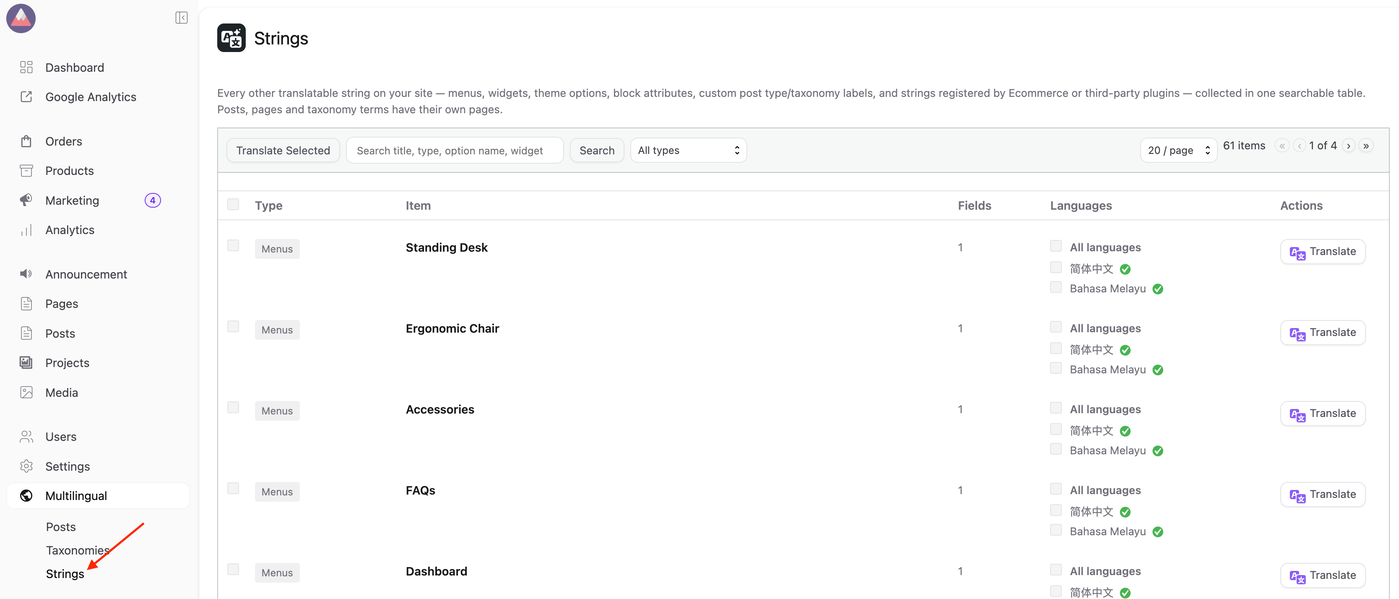
1. Go to Multilingual > Strings.
AI Translation: Step-by-Step Guide
2.1. Select the content you want to translate and click the Translate button in the Actions column.
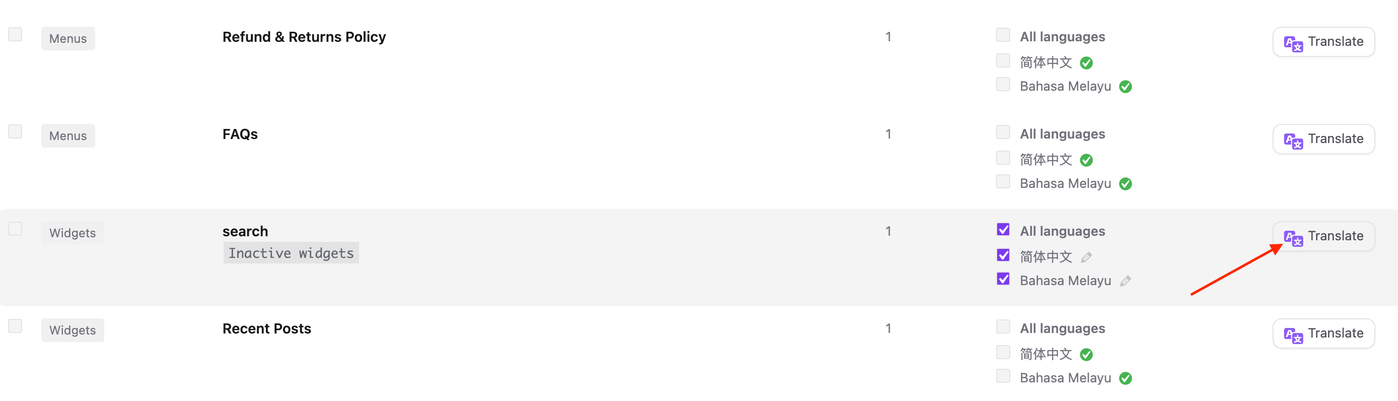
2.2. Wait for the translation to complete. Once it's done, a checkmark ✓ icon will appear.

2.3. To review the translated content, follow Manual Translation: Step-by-Step Guide.
NOTES:
While AI Translation offers a fast and convenient way to translate content, the results may not always be fully accurate, particularly for context-specific terms, technical language, or nuanced phrasing. In such cases, users can manually edit or input the translation to ensure accuracy and quality. The steps below outline how to manually translate content.
Manual Translation: Step-by-Step Guide
3.1. Click Item Title (Eg: FAQs) to manually edit and review all languages, or click the edit icon next to a specific language to translate or edit that language individually.

3.2. This action will open the Translation screen, where the content can be modified as required.
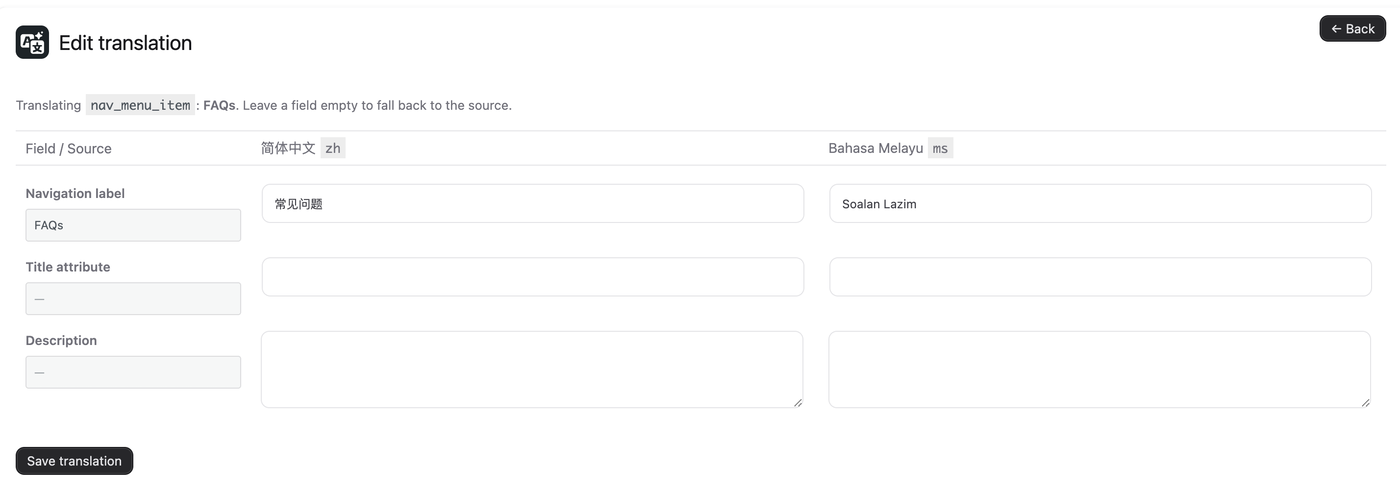
3.3. Click Save translation button.