

Multilingual - Translating Posts, Pages or Custom Post Types
The Multilingual Dashboard provides one convenient screen to translate all content. No need to visit different parts of the admin for each element. You can send everything you want for translation in one go, reducing clicks and saving time.
It supports 2 types of translation workflows:
AI Translation
Manual Translation
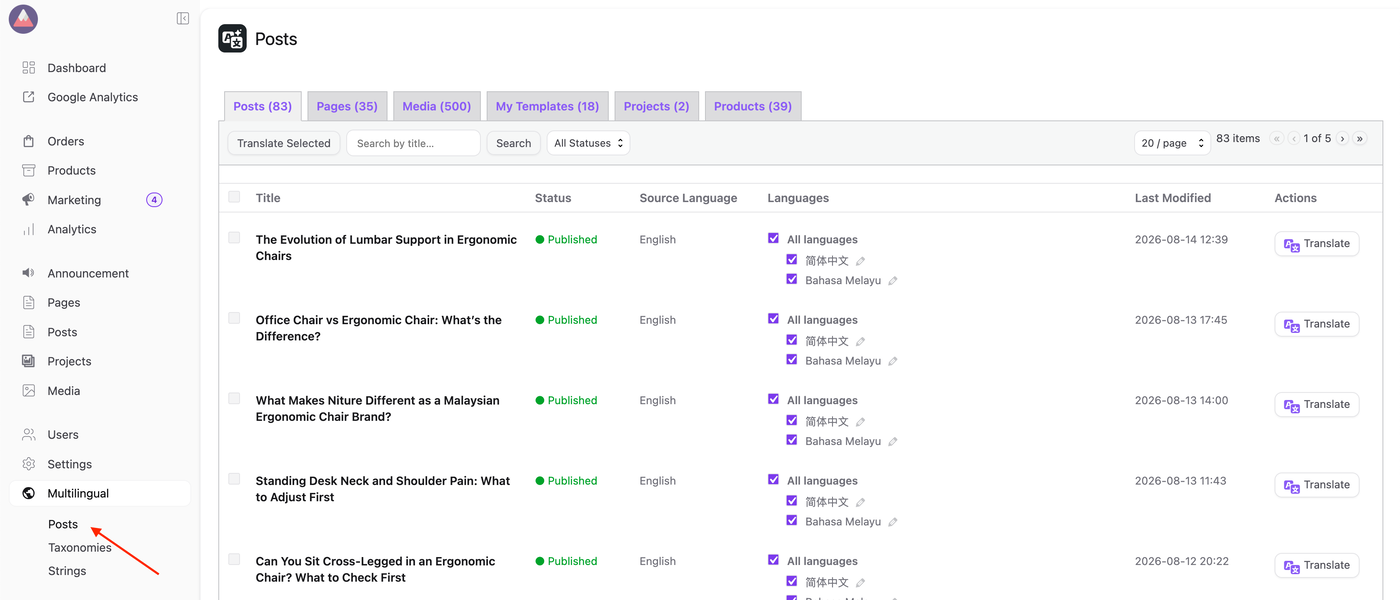
1. Go to Multilingual > Posts.
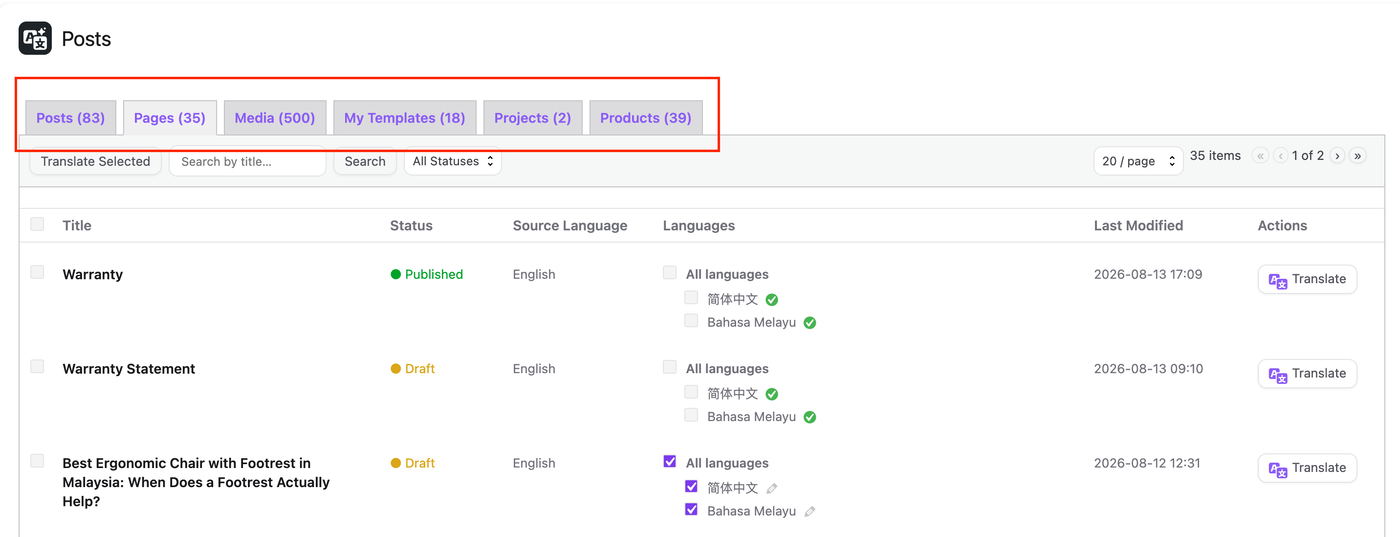
2. Before selecting the content, use the Navigation tab to choose which section you want to translate.
AI Translation: Step-by-Step Guide
3.1. Select the content you want to translate and click the Translate button in the Actions column.
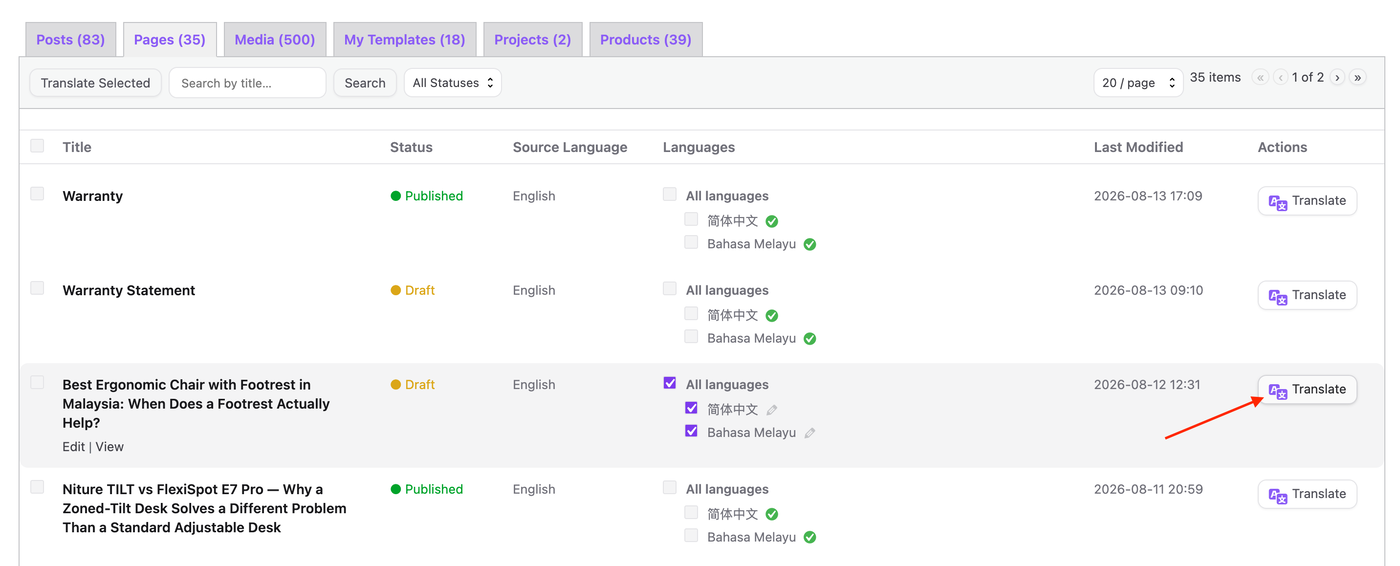
3.2. Wait for the translation to complete. Once it's done, a checkmark ✓ icon will appear.

3.3. To review the translated content, click the language (Eg: Bahasa Melayu) text.

NOTES:
While AI Translation offers a fast and convenient way to translate content, the results may not always be fully accurate, particularly for context-specific terms, technical language, or nuanced phrasing. In such cases, users can manually edit or input the translation to ensure accuracy and quality. The steps below outline how to manually translate content.
Manual Translation: Step-by-Step Guide
4.1. Click the Edit icon to manually translate the content from scratch, or click the Checkmark icon if you have already completed the AI Translation and wish to modify it.

4.2. This action will open the ProEditor or Basic Editor, where the content can be modified as required.