
Products - Adding a Variable Product
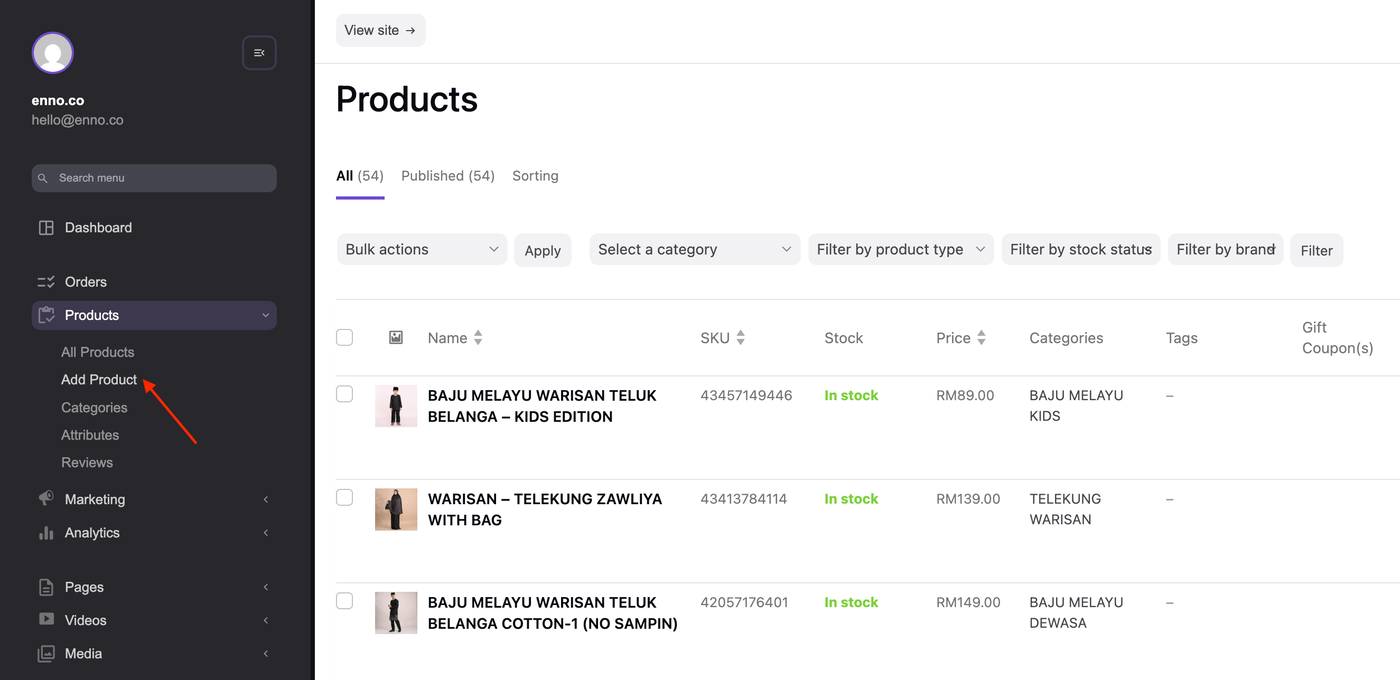
1. Go to Products > Add Product.
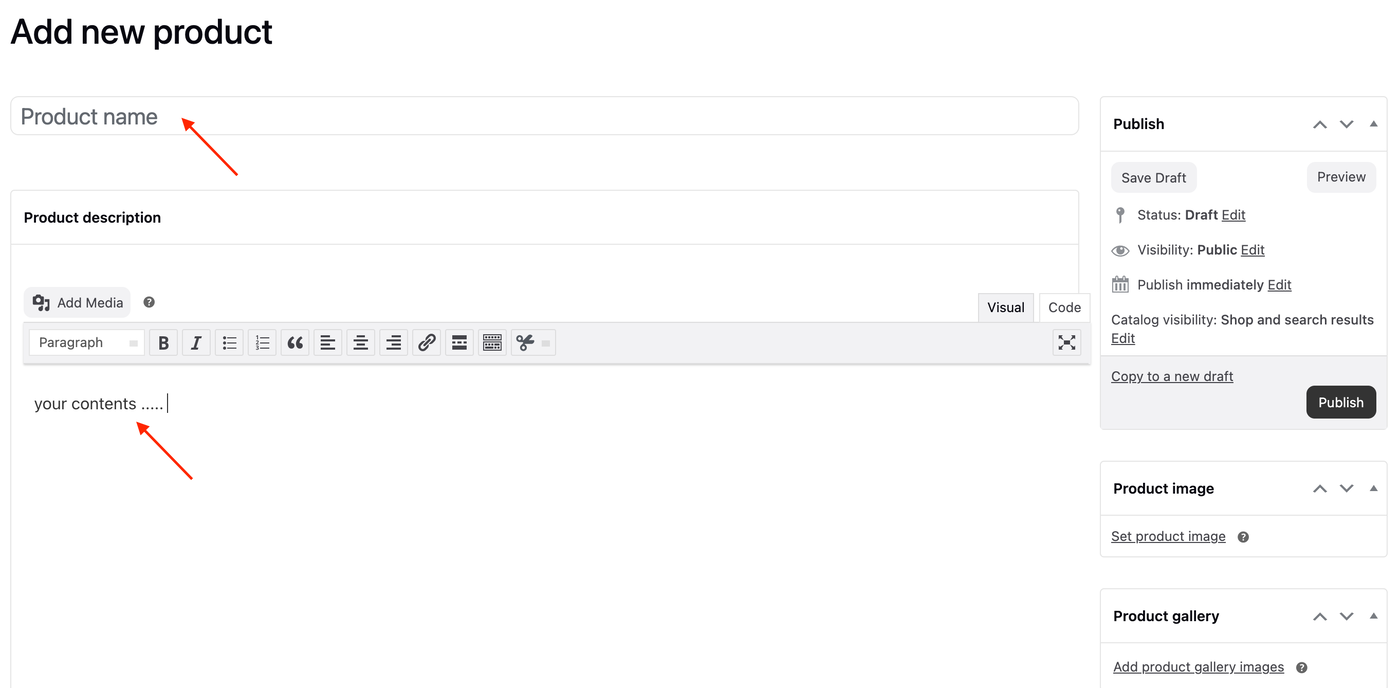
2. Enter the product name and description.
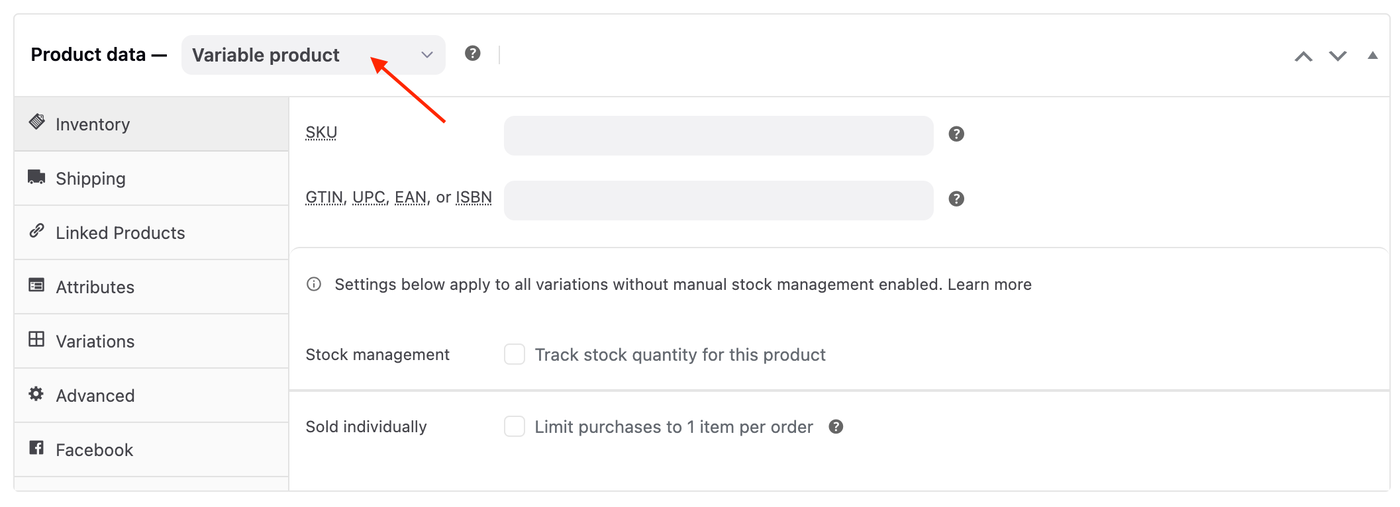
3. Scroll down to the Product Data section and select Variable Product from the dropdown menu.
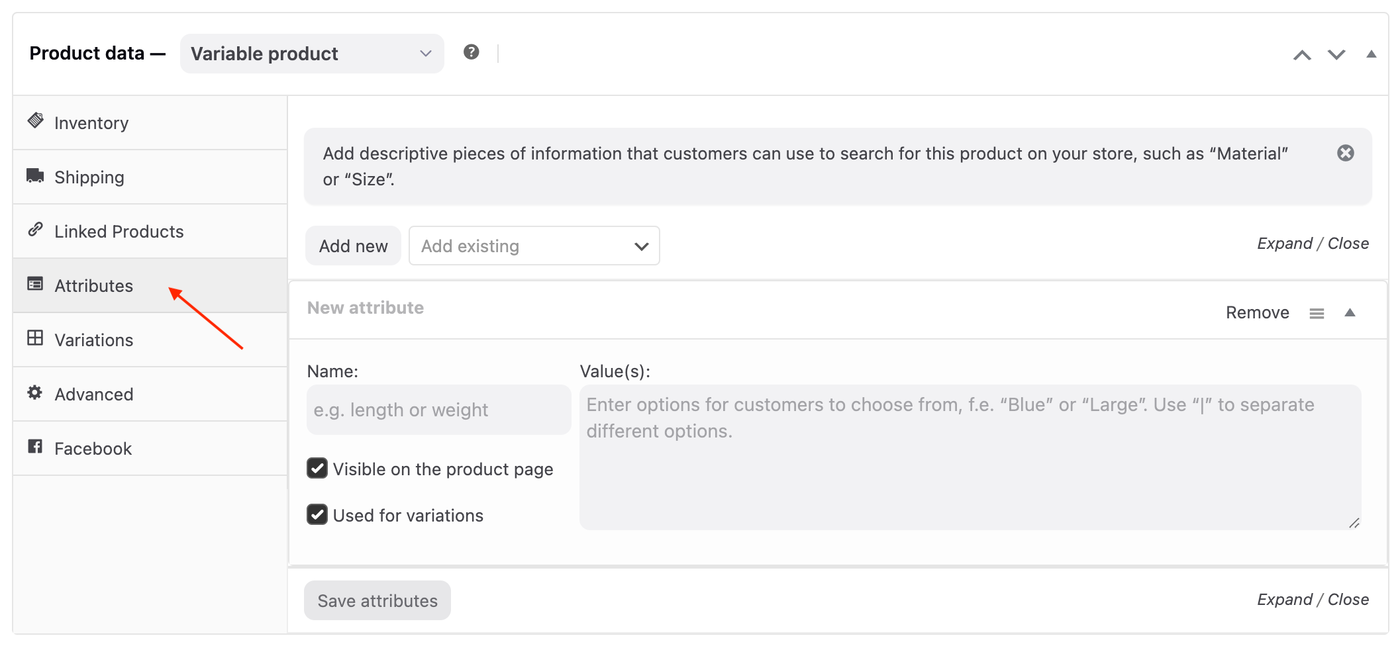
4. Click on the Attributes tab on the left hand side under the Product data dropdown.
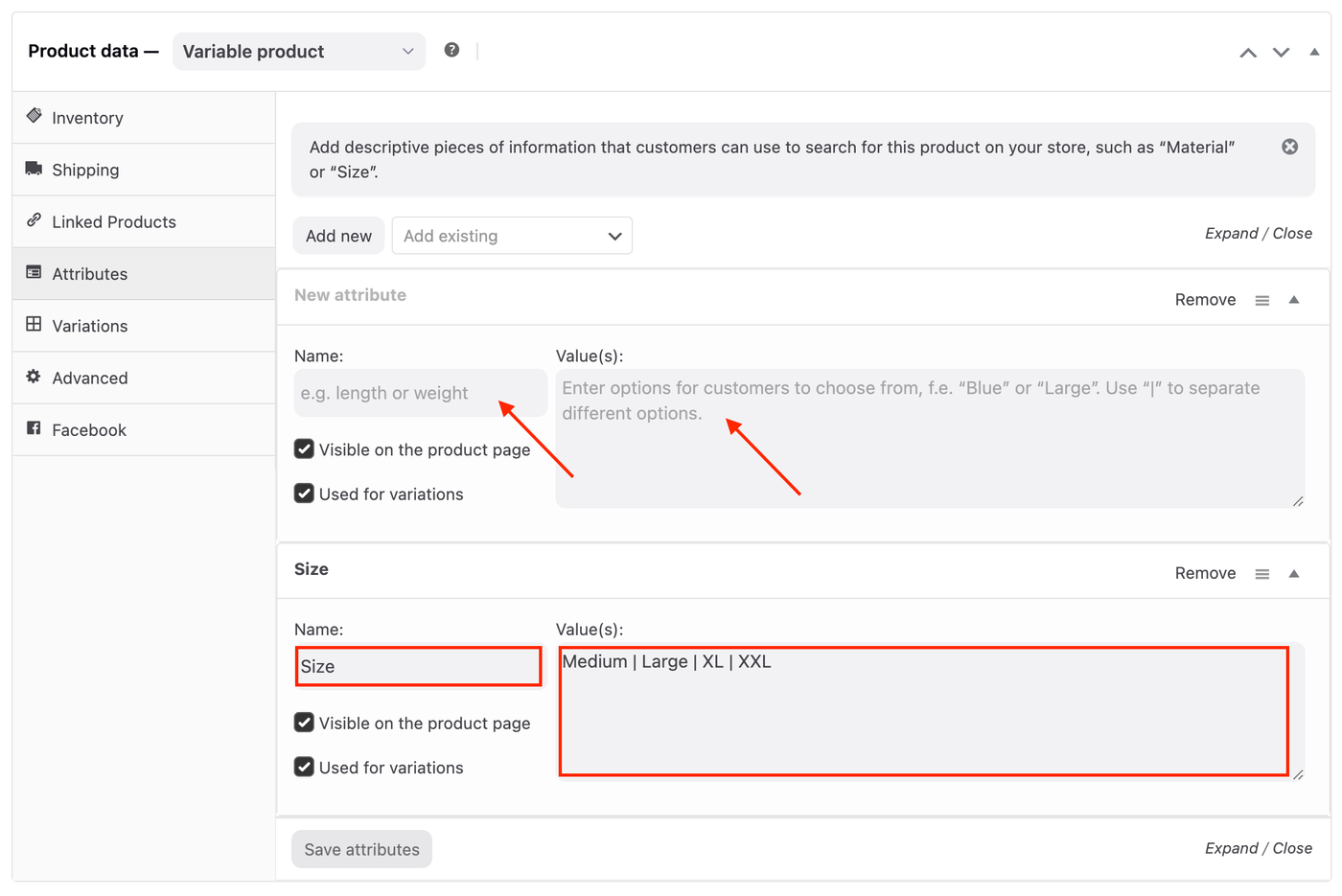
5. Add a name and values (variations).
Example: Size (Medium | Large | XL | XXL)
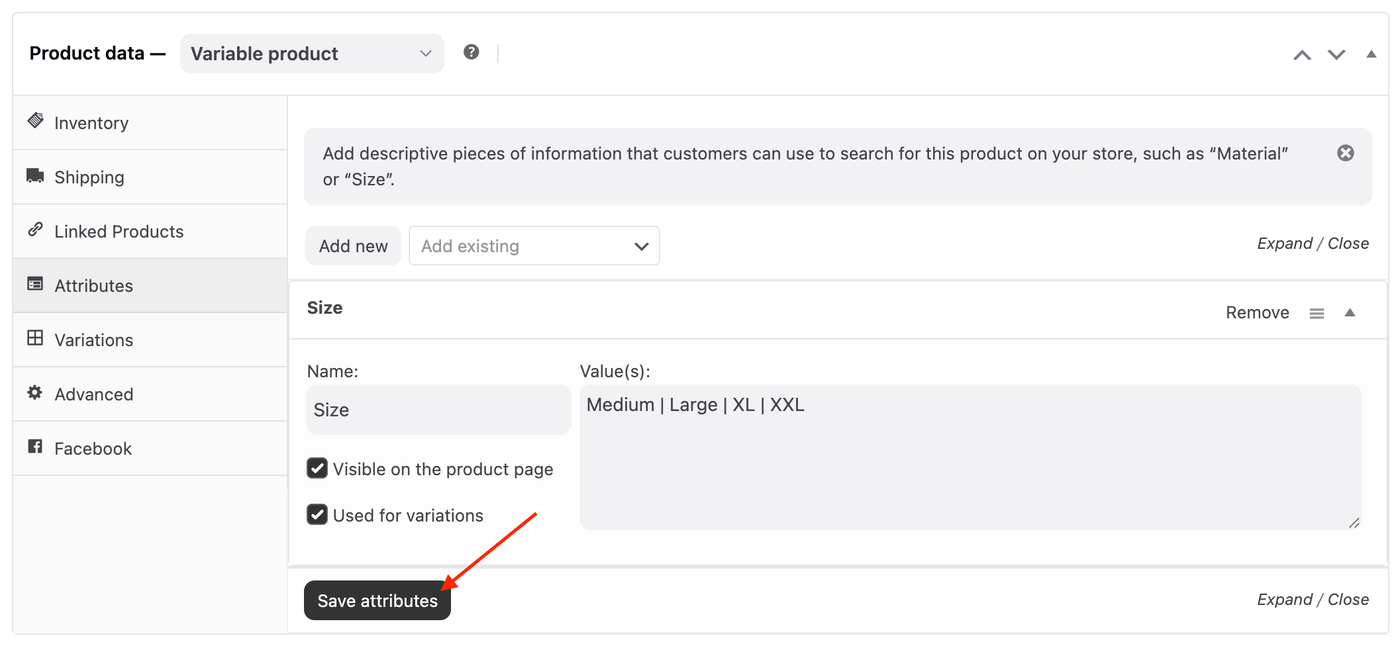
6. Click Save Attributes.
(if any)
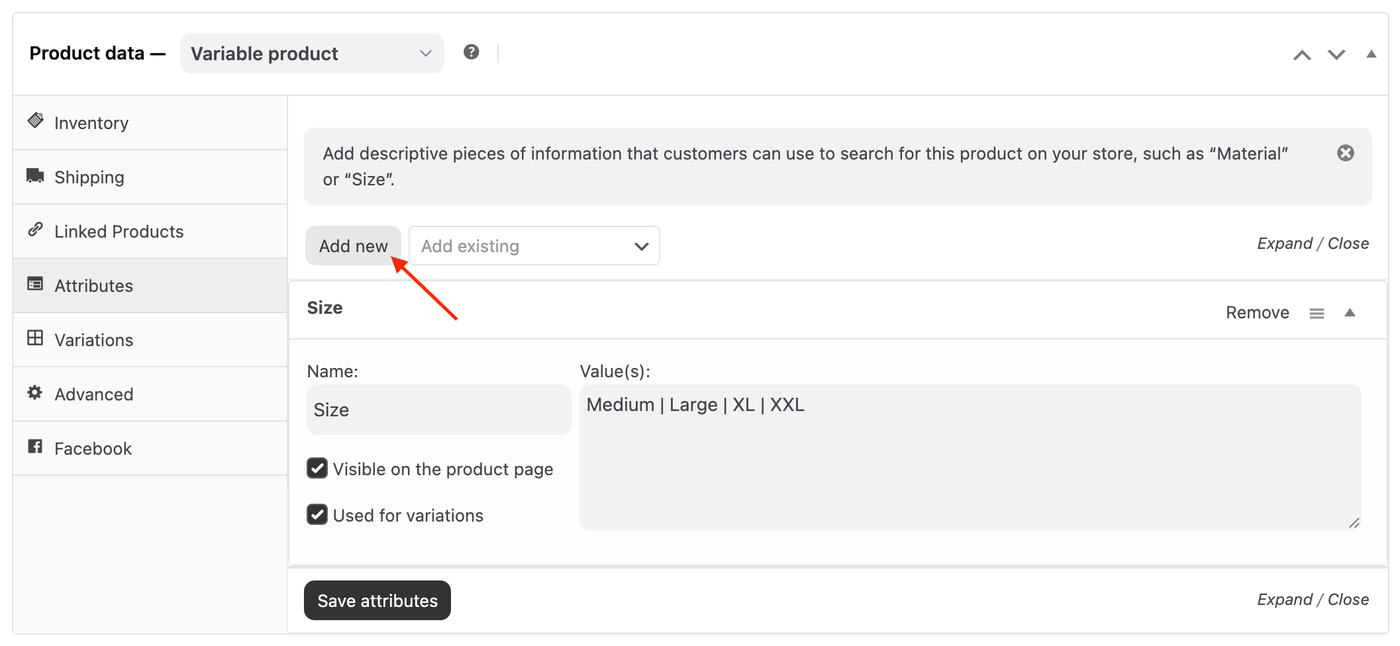
Repeat steps 5 and 6 to add more attributes by clicking the Add New button. Example: Color (Red | White)
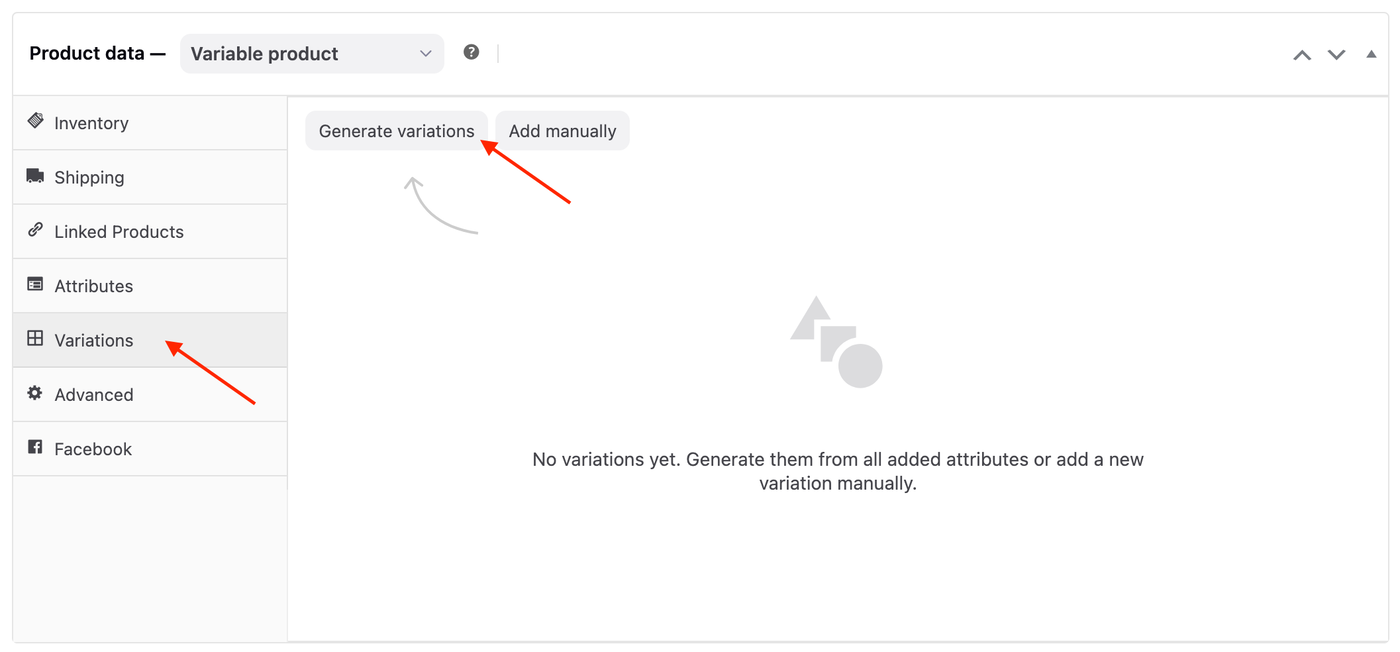
7. Click on the Variations tab on the left and click the Generate variations button.
8. Click on each variation to expand the variation menu.
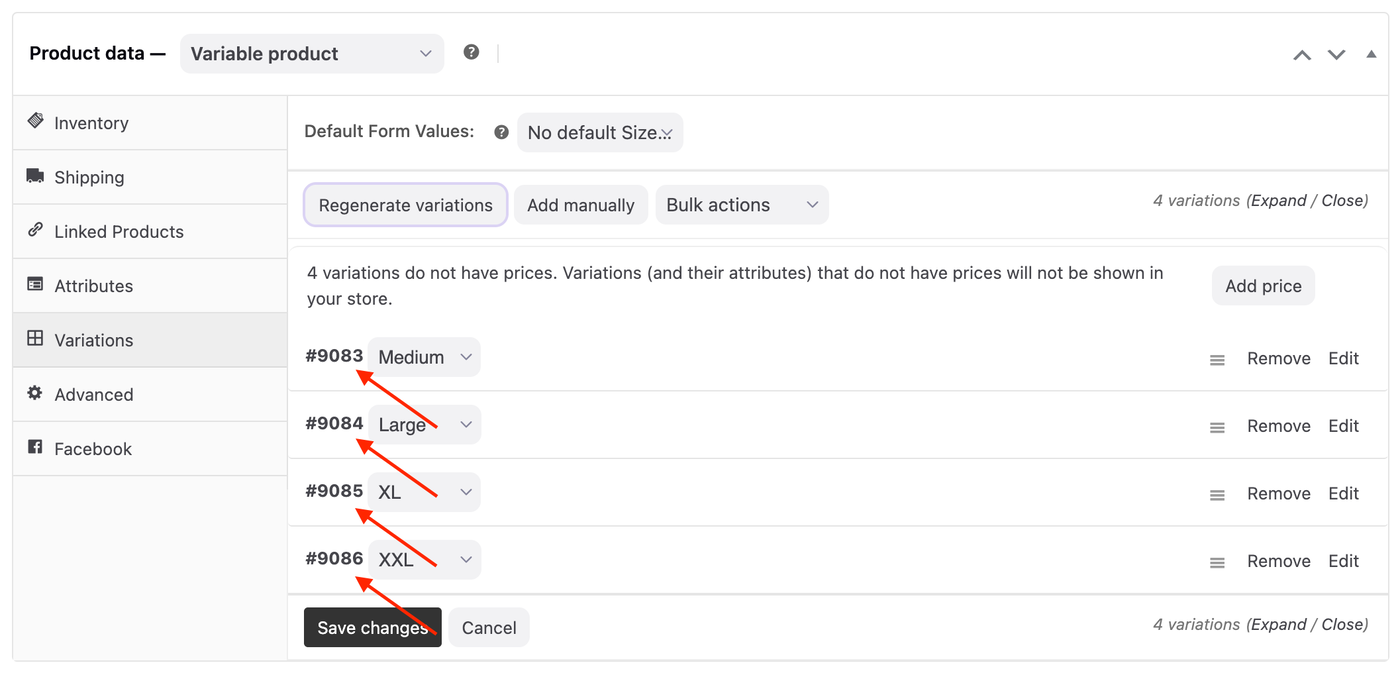
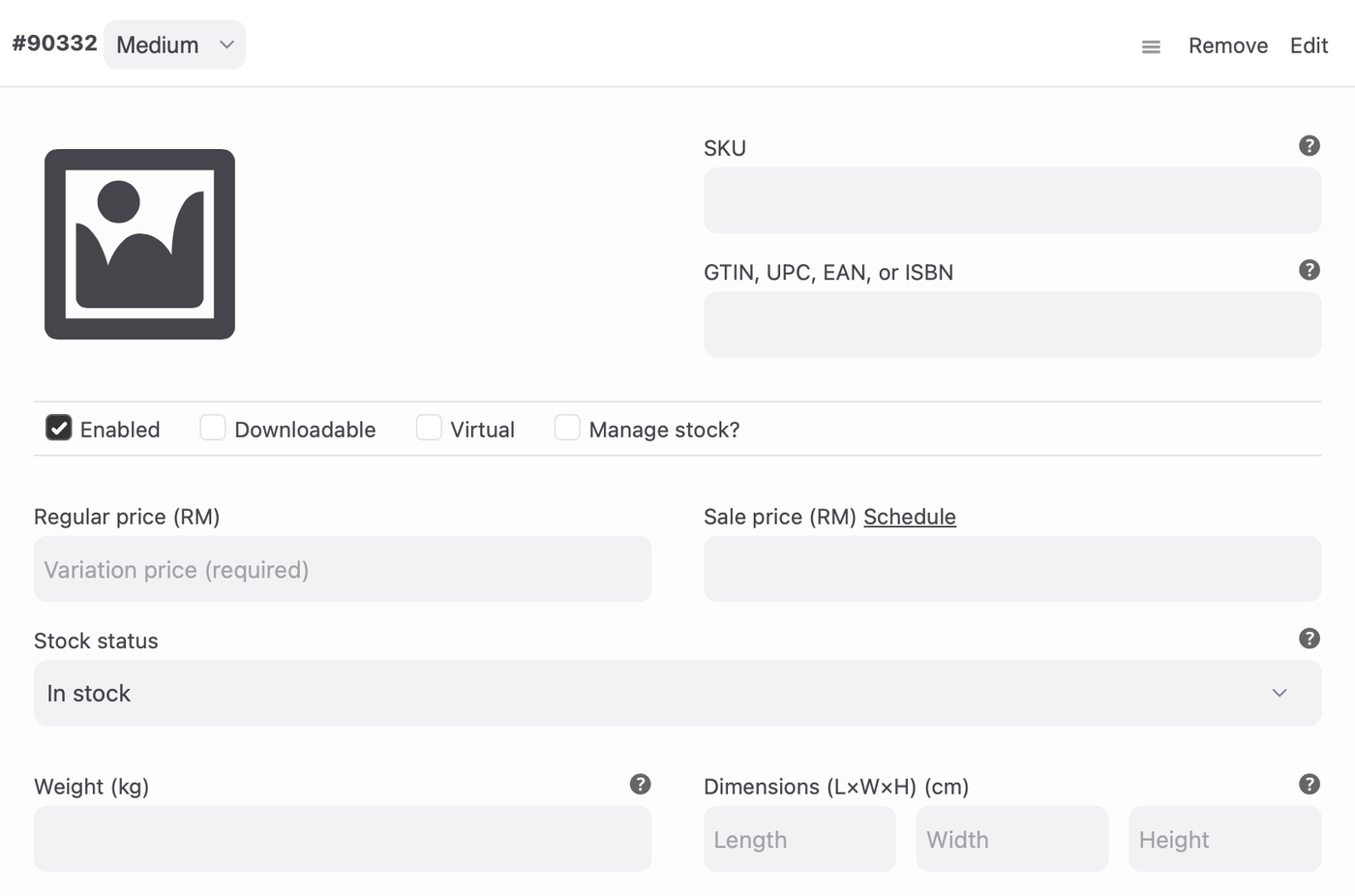
9. Under the variation menu, enter the product information. Repeat for all variations.
Regular Price
Sale Price (Optional)
Weight (Optional)
Dimensions (Optional)
SKU (Optional)
GTIN, UPC,EAN or ISBN (Optional)
Manage stock? (Optional)
Variation’s Image (Optional)
(Optional)
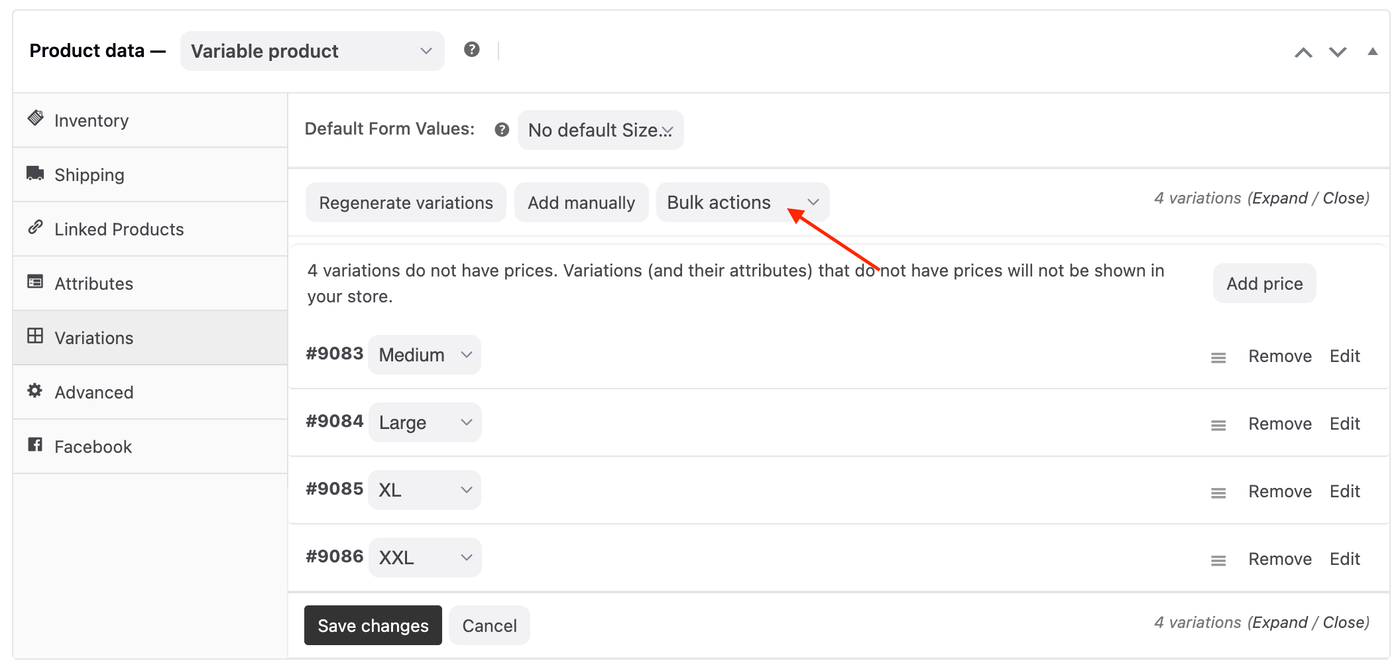
Use the Bulk Actions dropdown to set product information for all variations at once.
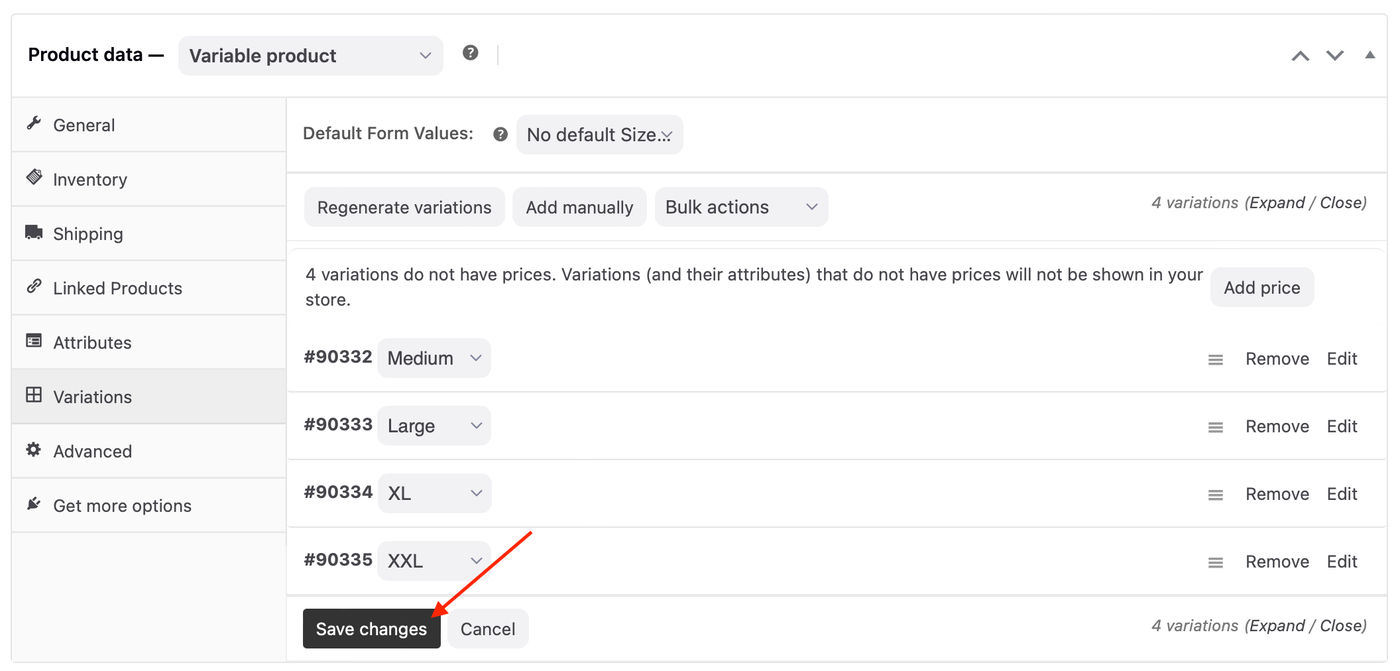
10. Click Save changes button at the bottom of the variations menu.
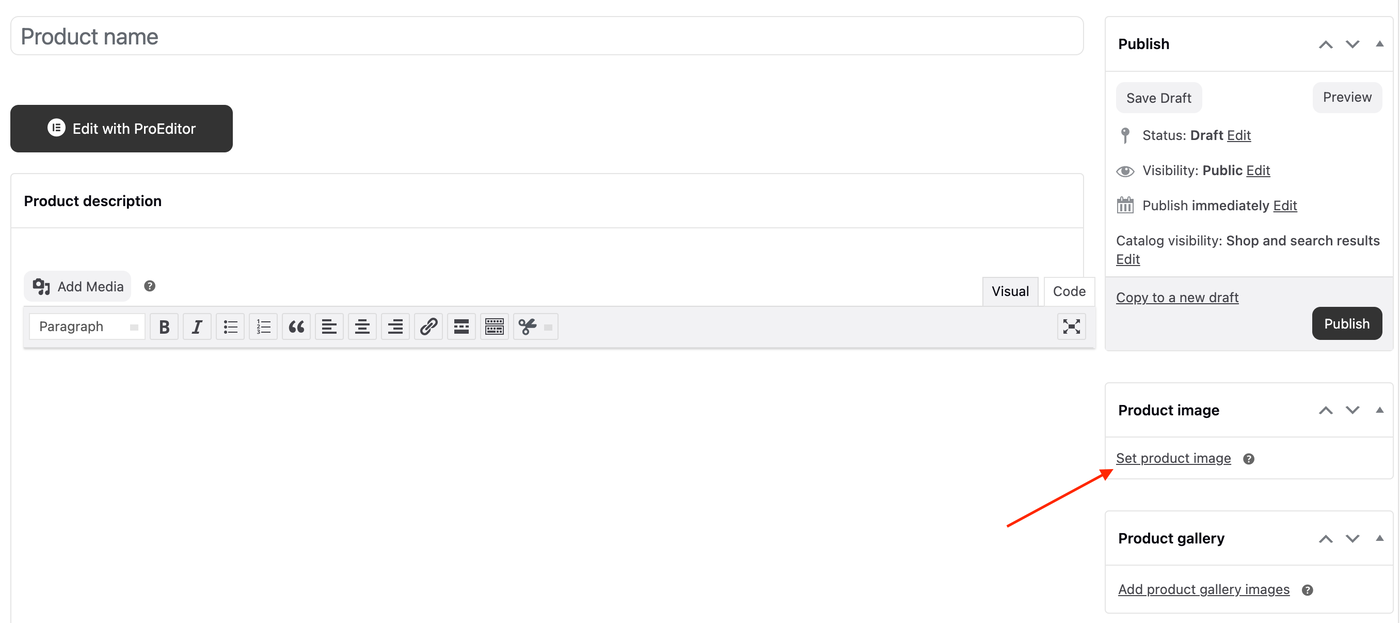
11. In the Product image panel in the right-hand column, click the Set product image link.
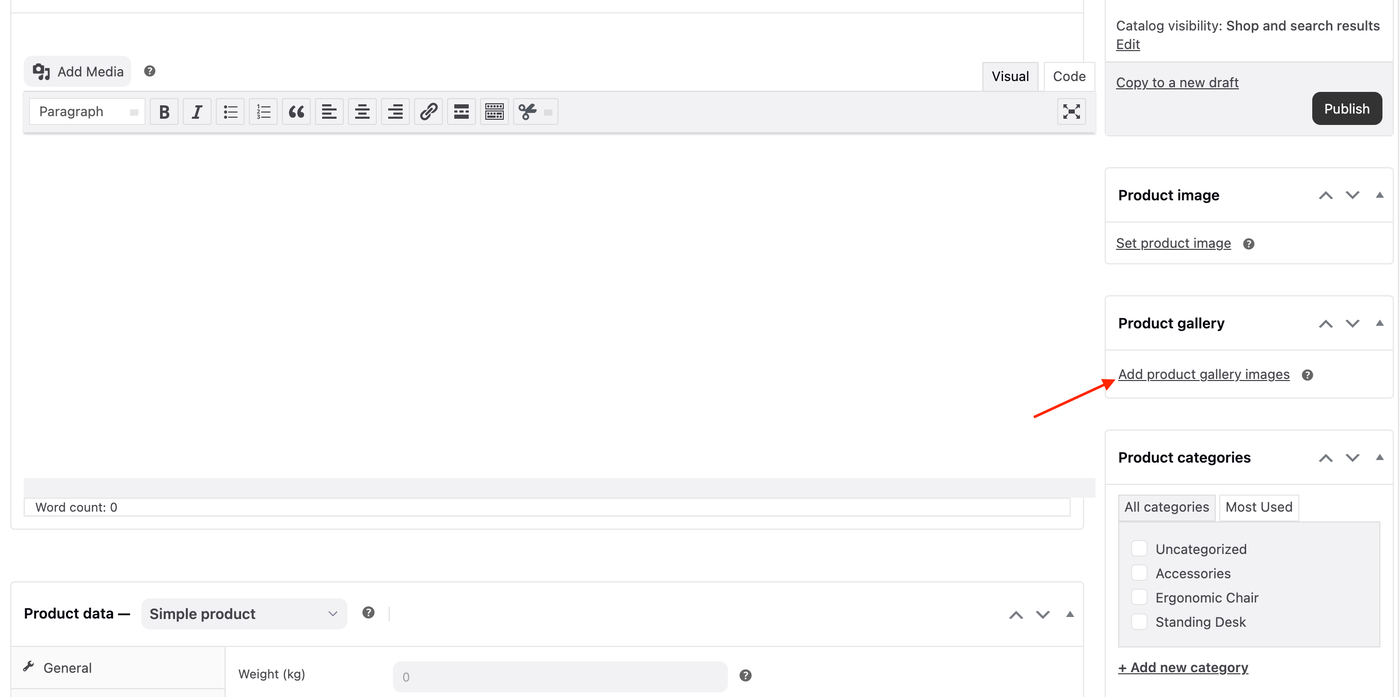
12. (Optional) In the Product gallery panel, you can upload more images by click the Add product gallery images link.
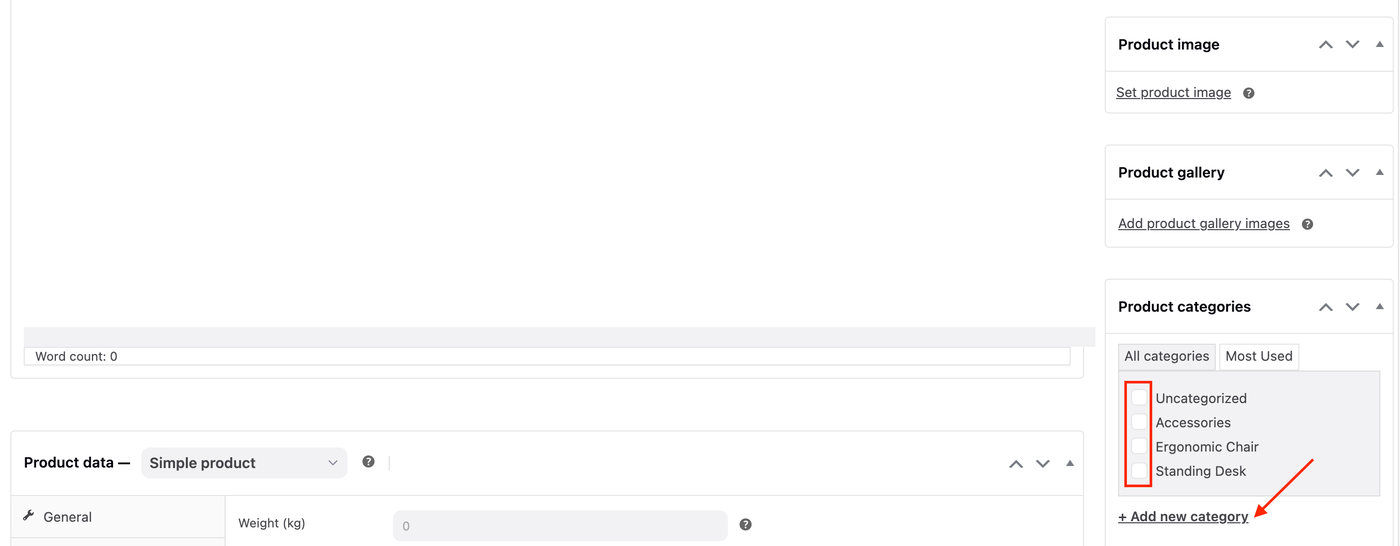
13. (Optional) In the Product categories panel, select the appropriate categories or + Add new category.
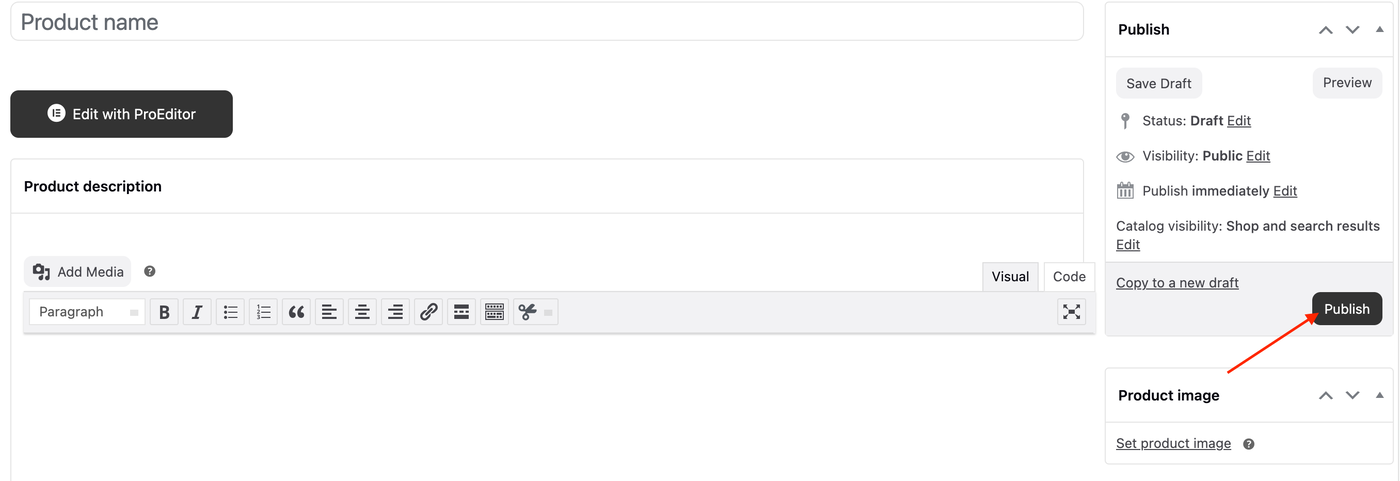
14. Finally, click the Publish button to make your product live in your store.