

Simulate a Customer Order with CHIP Test Mode
You can use Test Mode to place a complete order as a customer and simulate the payment process without making a real payment.
This allows you to test the customer experience from adding a product to the cart, completing checkout, making a test payment, and checking the resulting order.
Enable CHIP Test Mode
1. Log in at https://portal.chip-in.asia/.
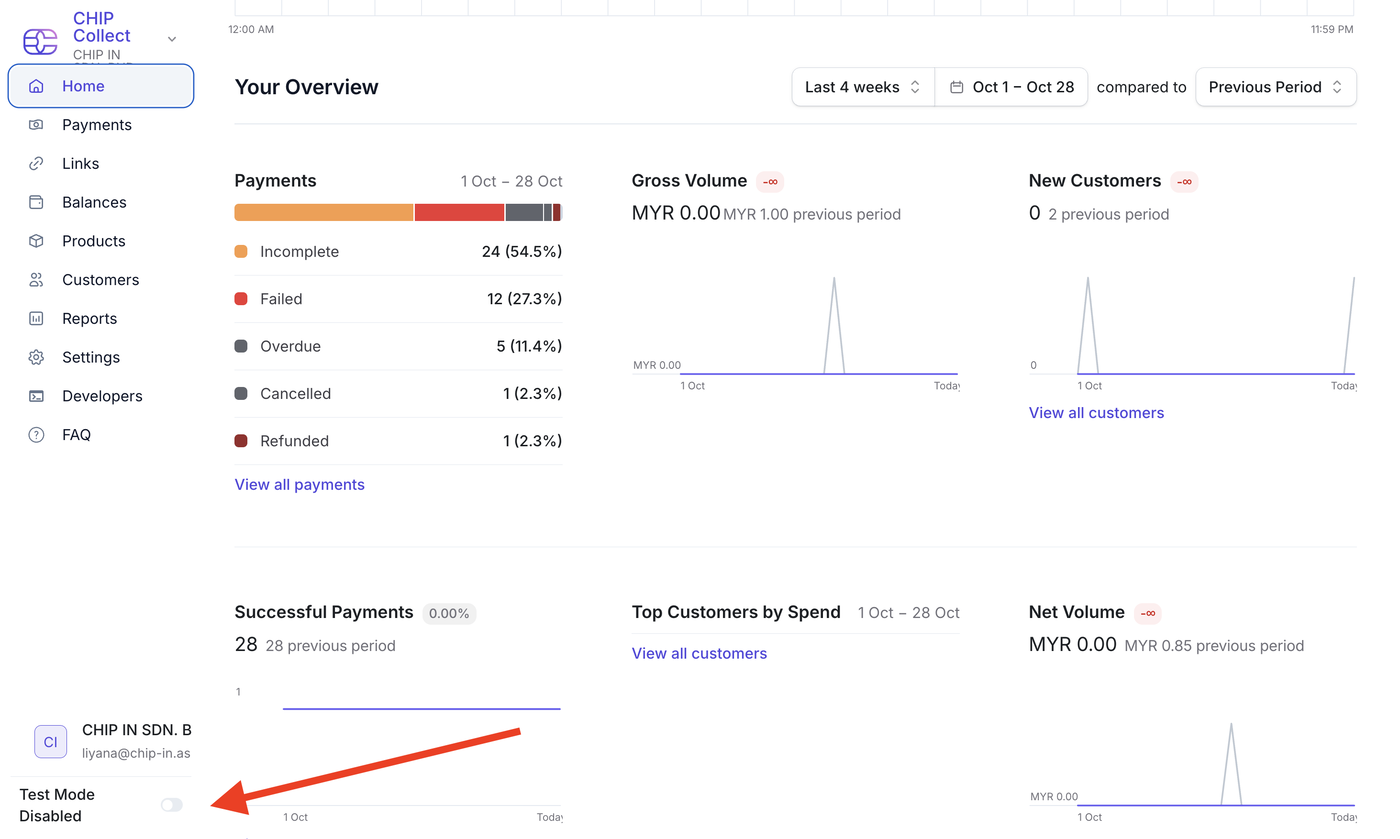
2. Toggle on Test Mode at the bottom-left corner.
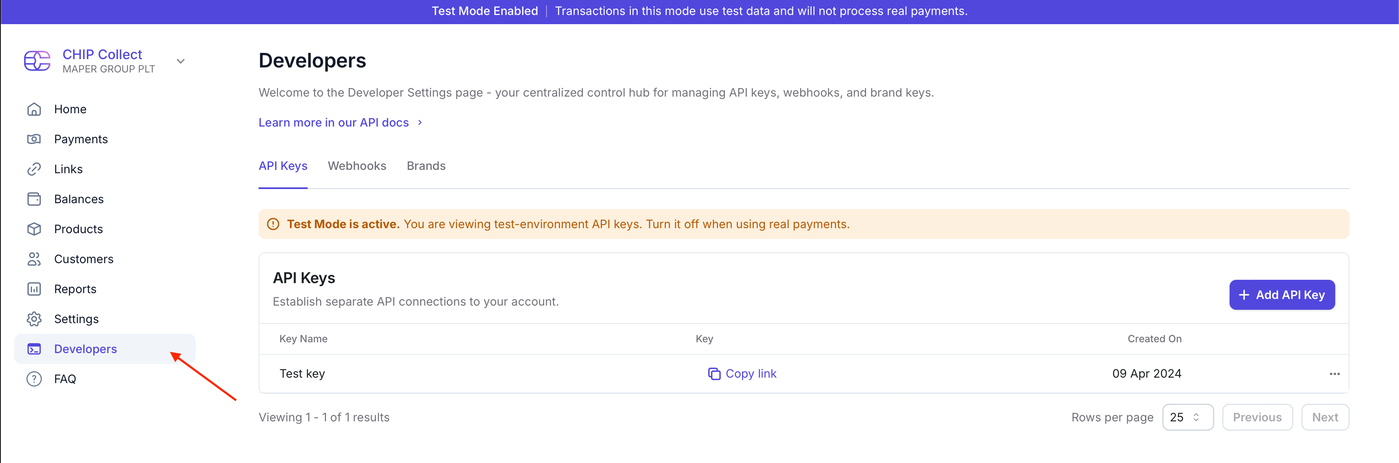
3. Go to Developers.
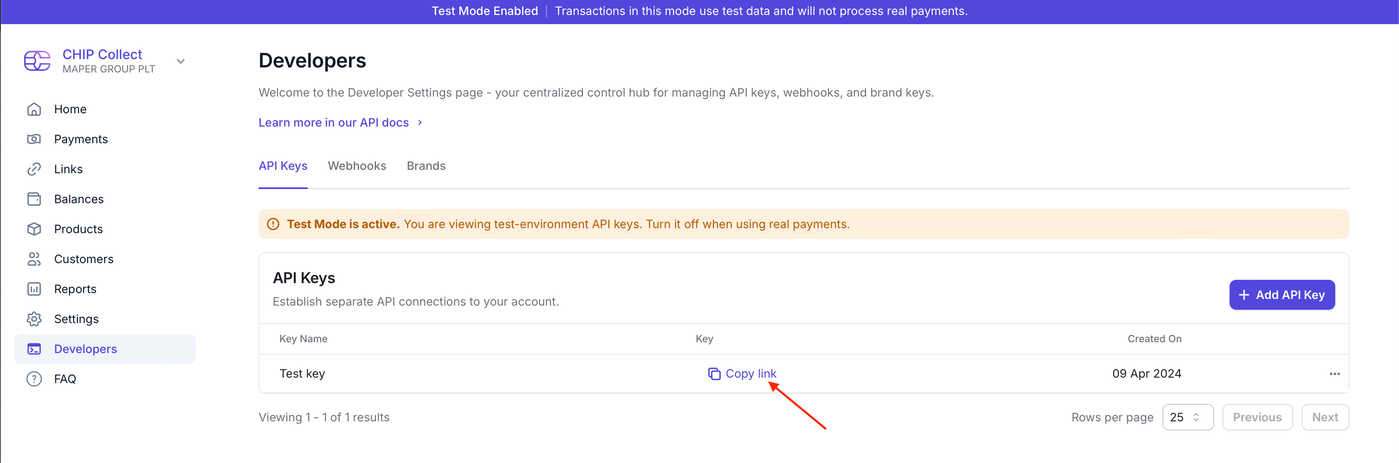
4. Copy your Test API Key.
5. Return to WebPanel > Settings > Ecommerce > Payments.
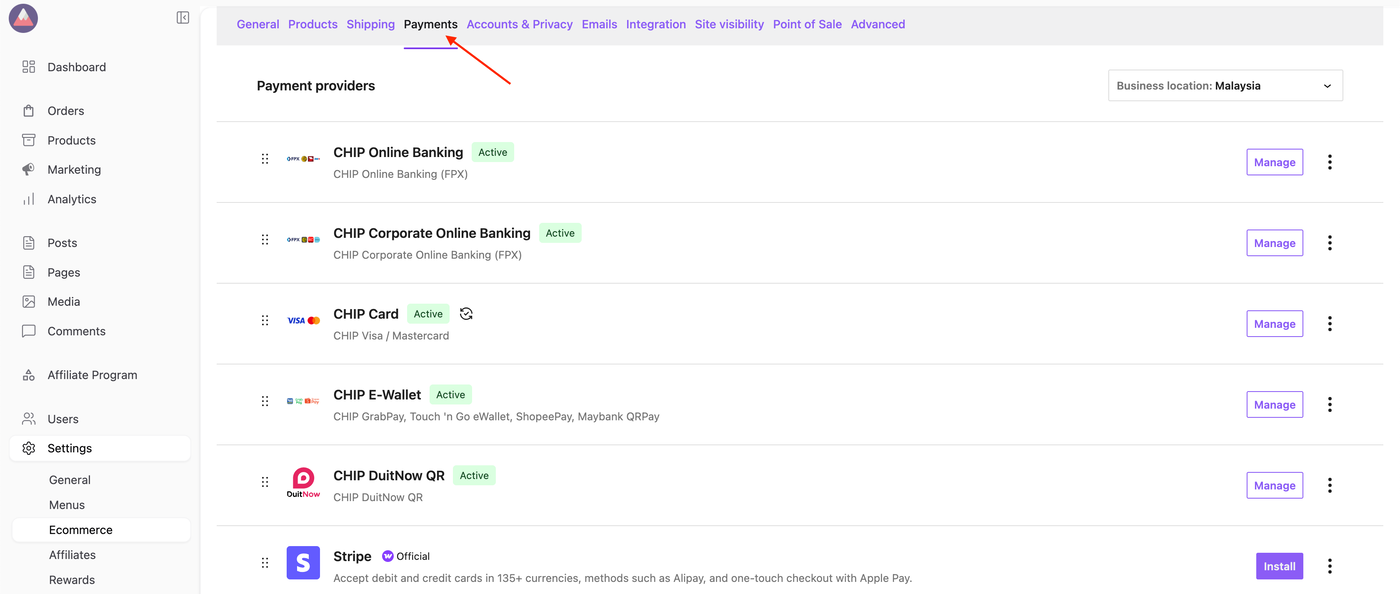
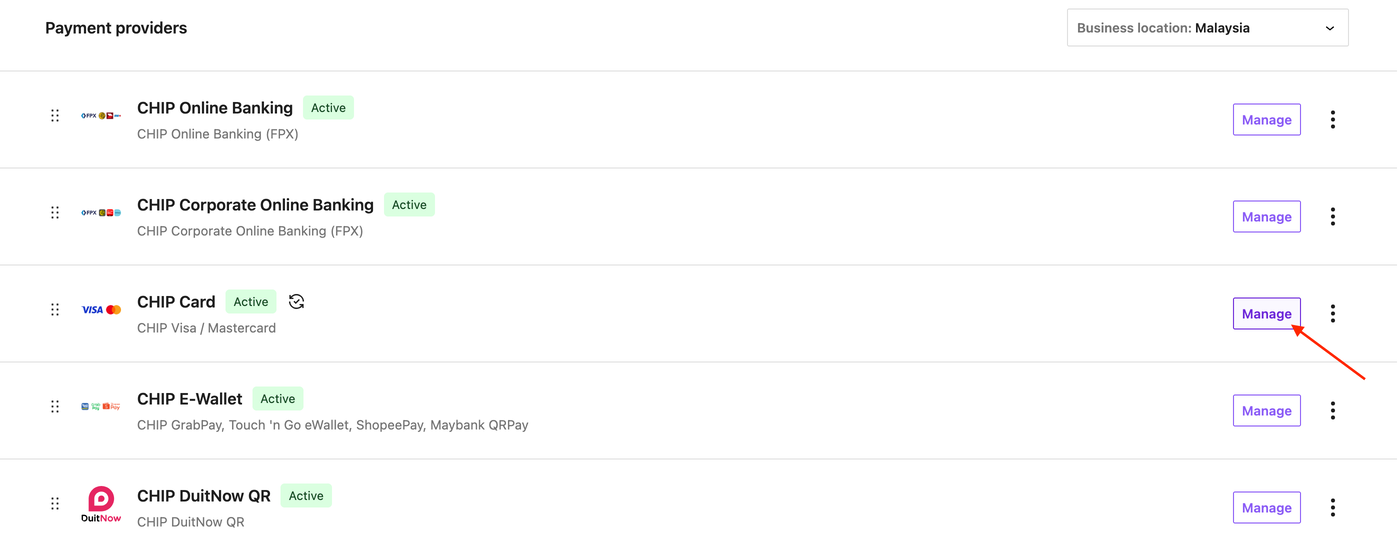
6. Click the Manage button on Chip Card.
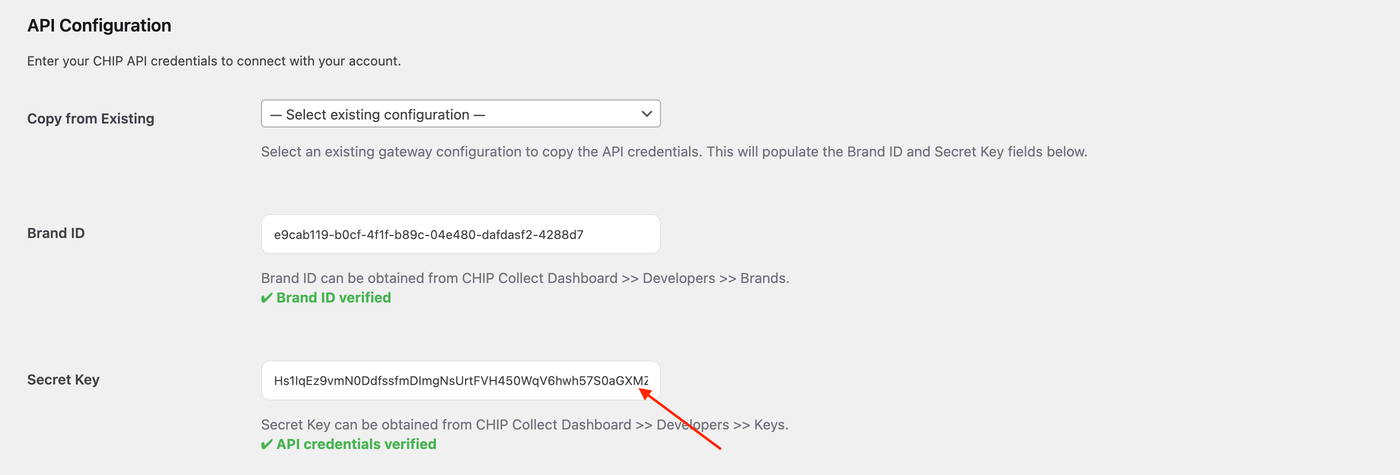
7. Paste your Test API Key in Secret Key field.
8. Click the Save changes button.
Place a Test Order
Once Test Mode is enabled, you can test the order from the customer's perspective by using the following test card:
Card Name: (Any)
Card Number: 4444 3333 2222 1111
Expiry: 12/26
CVV: 123
Test Mode simulates the payment process, but no actual payment will be charged.
Disable CHIP Test Mode
1. Log in at https://portal.chip-in.asia/.
2. Toggle off Test Mode at the bottom-left corner.
3. Go to Developers.
4. Copy your Live API Key.
5. Return to WebPanel > Settings > Ecommerce > Payments.
6. Click the Manage button on Chip Card.
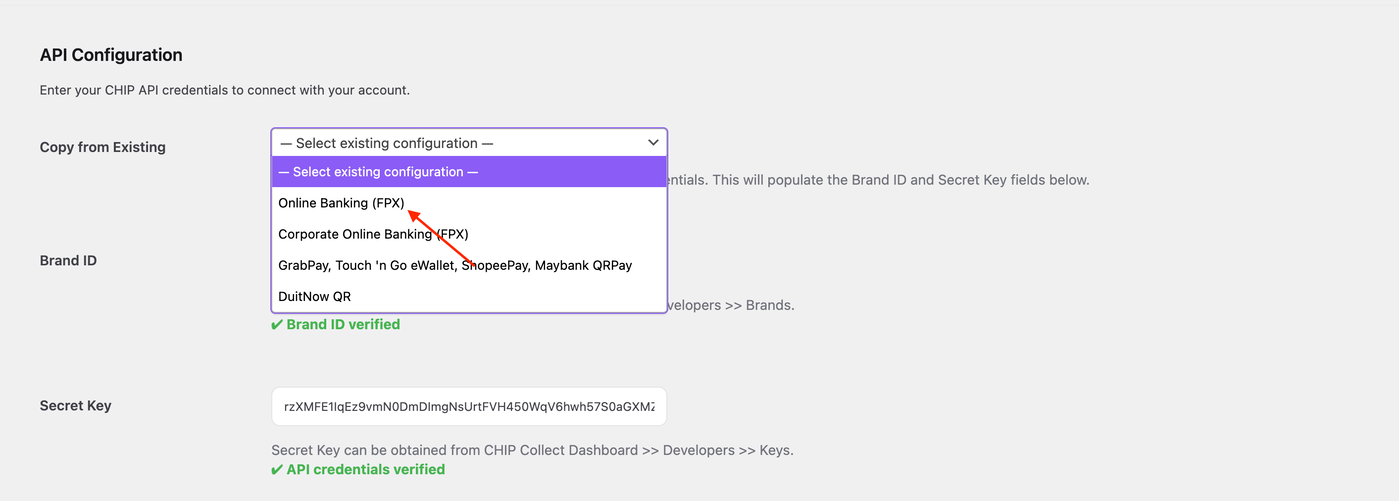
7. Select Online Banking (FPX) from the Copy from Existing field.
8. Click the Save changes button.