
SmartCoupons - Managing BOGO(Buy One Get One) Offers
Overview
SmartCoupons supports multiple BOGO(Buy One Get One) offer variations, including the following commonly used types:
Buy X, Get Y: Buy one item and get a second at a discounted or free rate.
Discount on the Second Item: Percentage or fixed-price discount.
Discount After Spending a Certain Amount: Triggered by a minimum spend.
And many more.
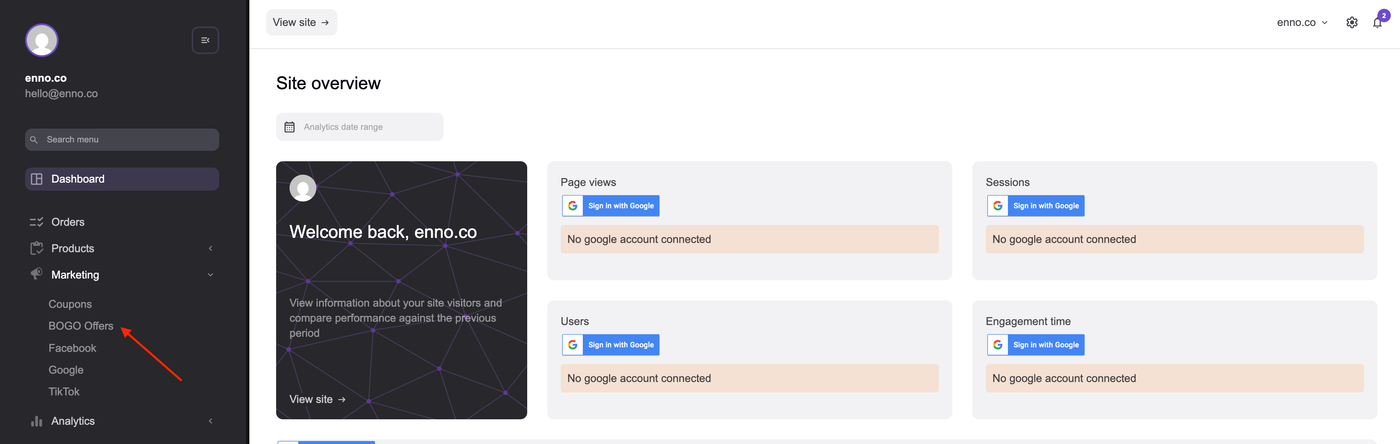
To get started, login to WebPanel and navigate to Marketing > BOGO Offers.
Creating or Adding a BOGO Offer
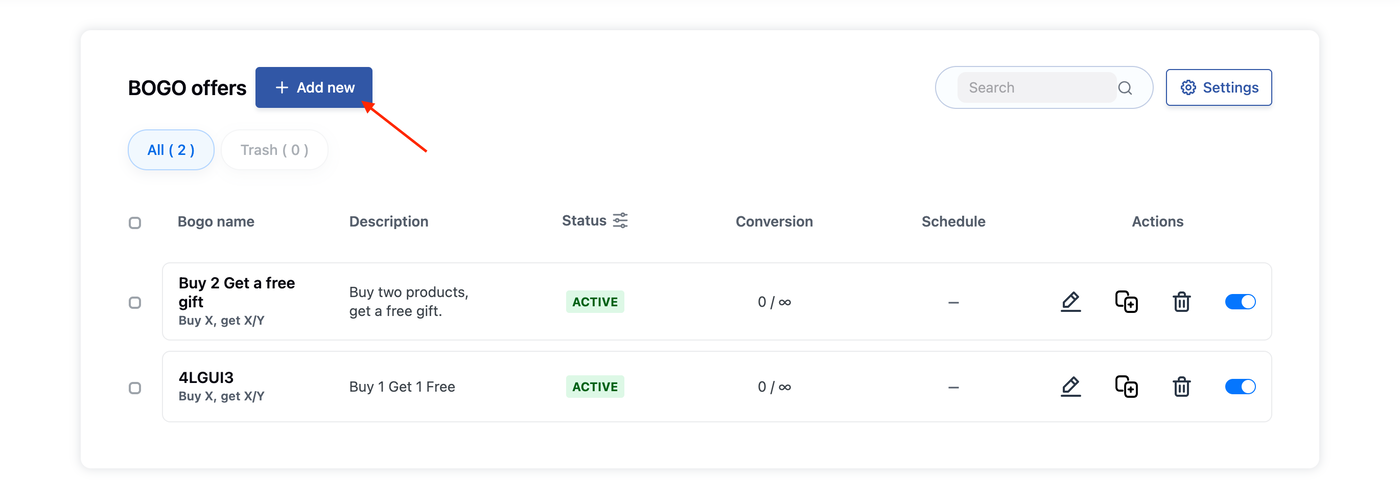
1. Click the + Add new button.
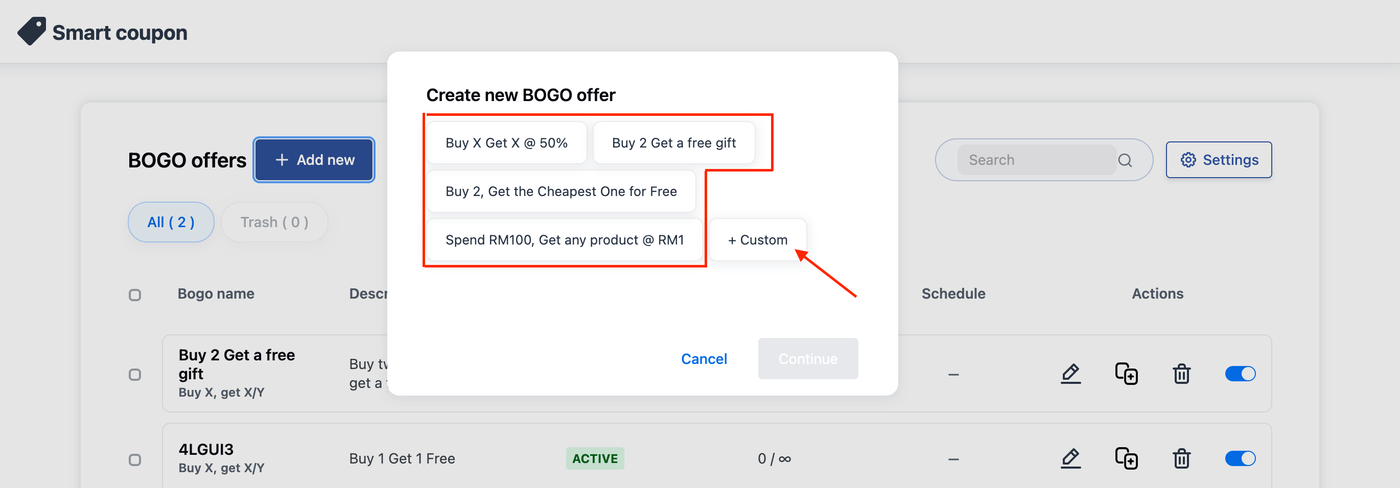
2. Choose from recommended BOGO types or select + Custom button.
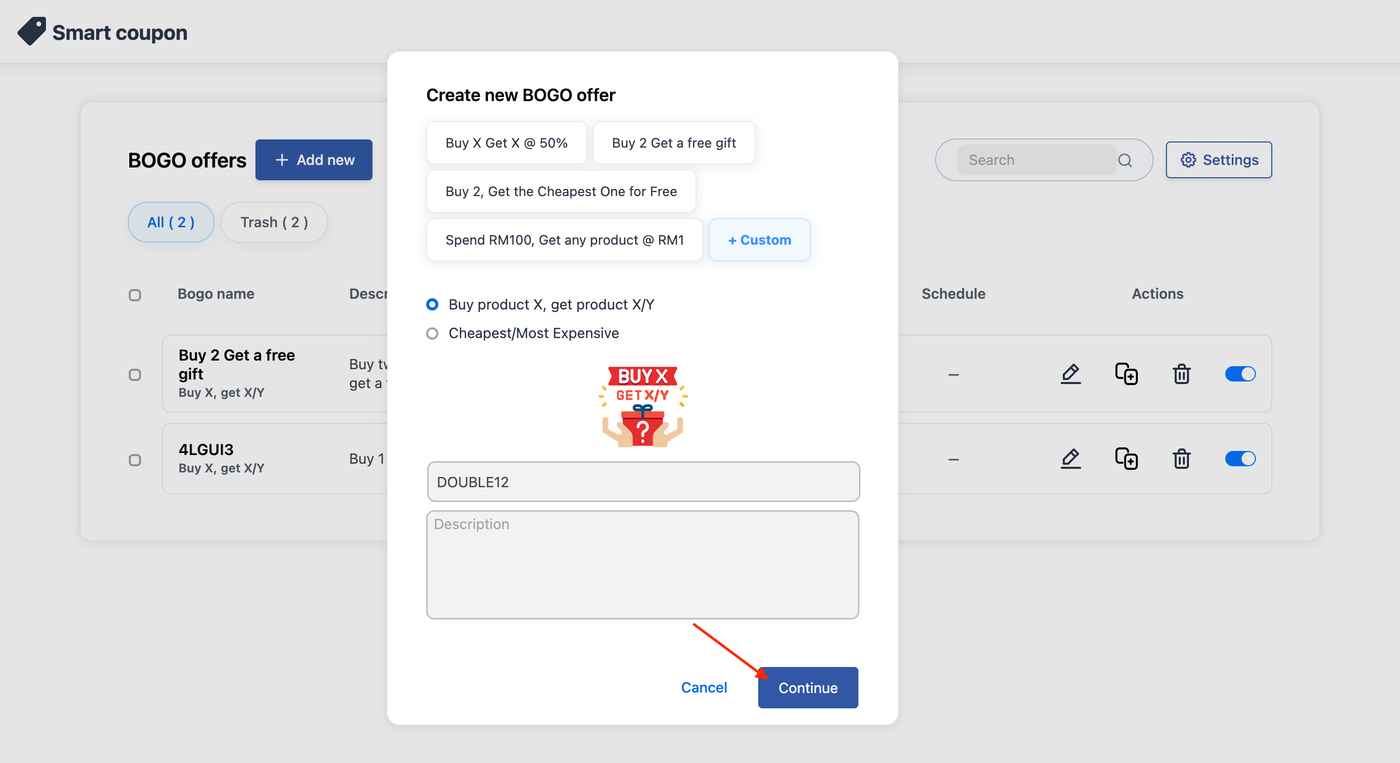
3. Select a Offer Type and insert a Offer title as coupon code.
Buy product X, get product X/Y – Buy a product and get the same product or any other selected products.
Get the expensive/cheapest product in the cart – Convert the most expensive or cheapest product in the cart into a giveaway.
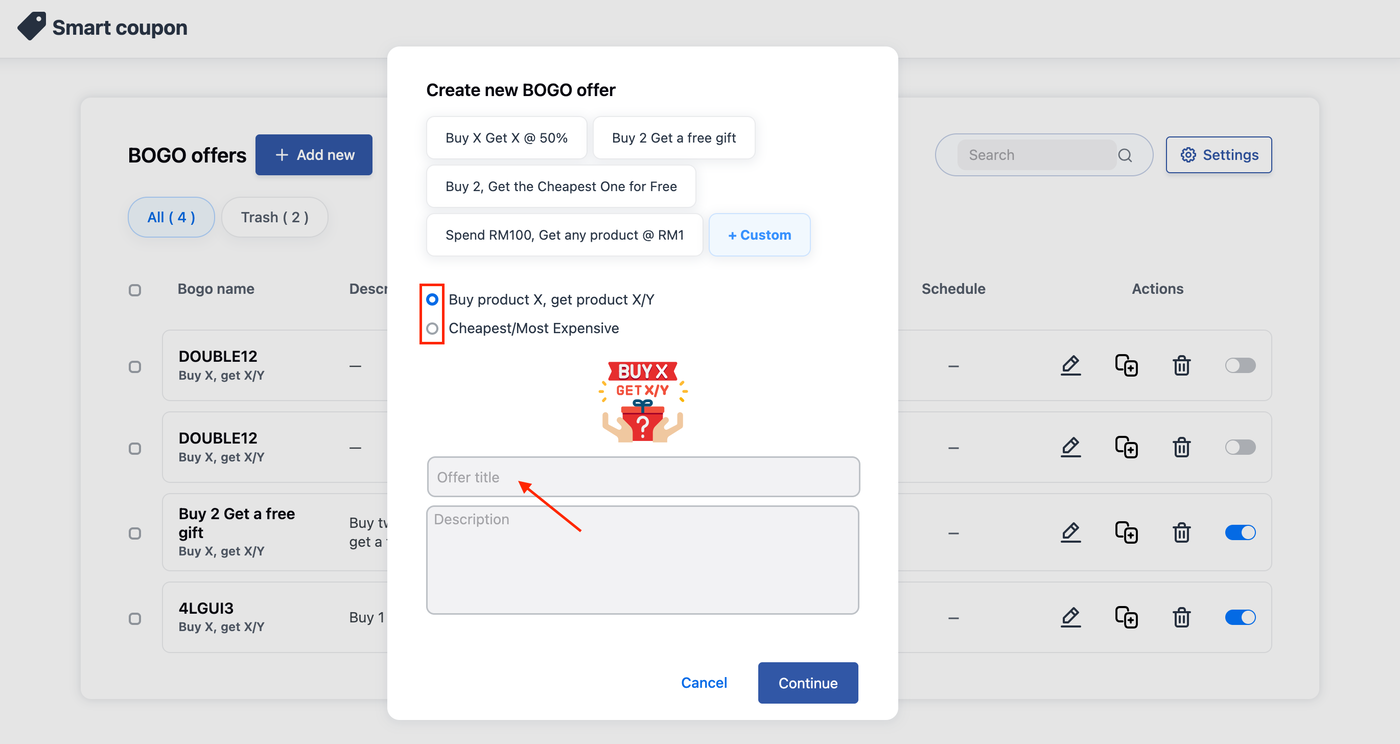
4. Click the Continue button.
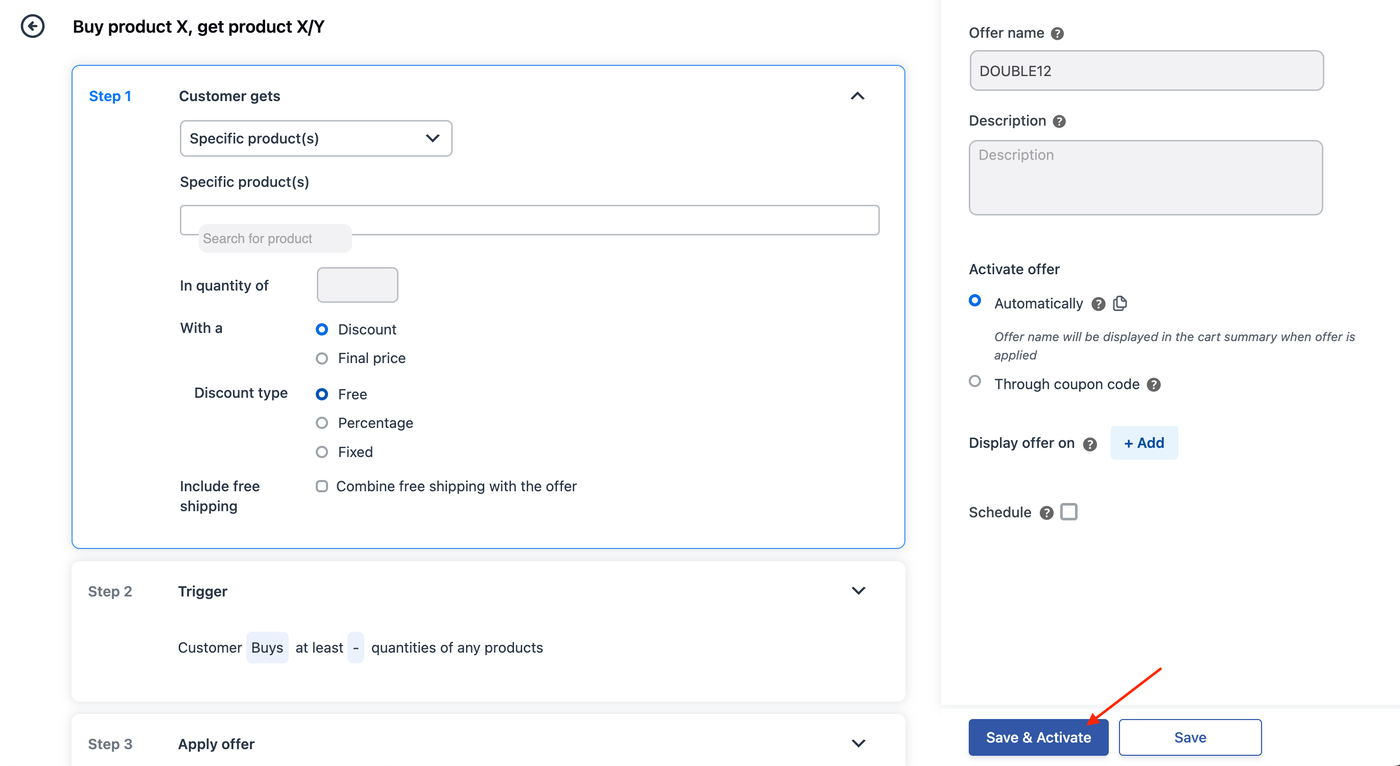
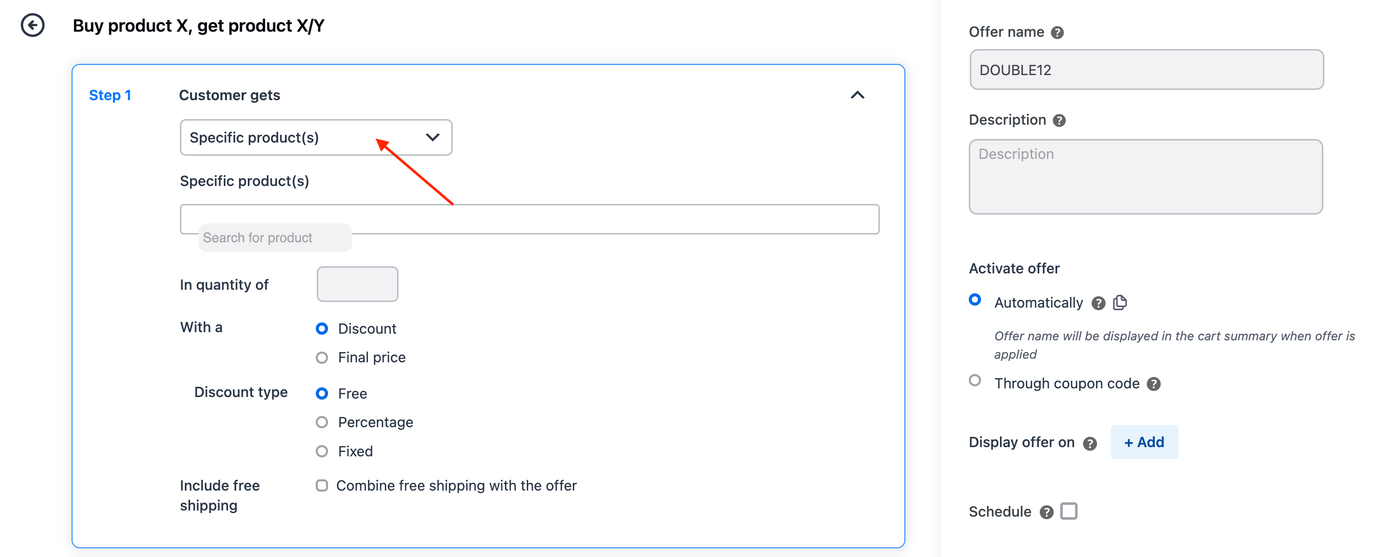
Configure Buy product X, get product X/Y
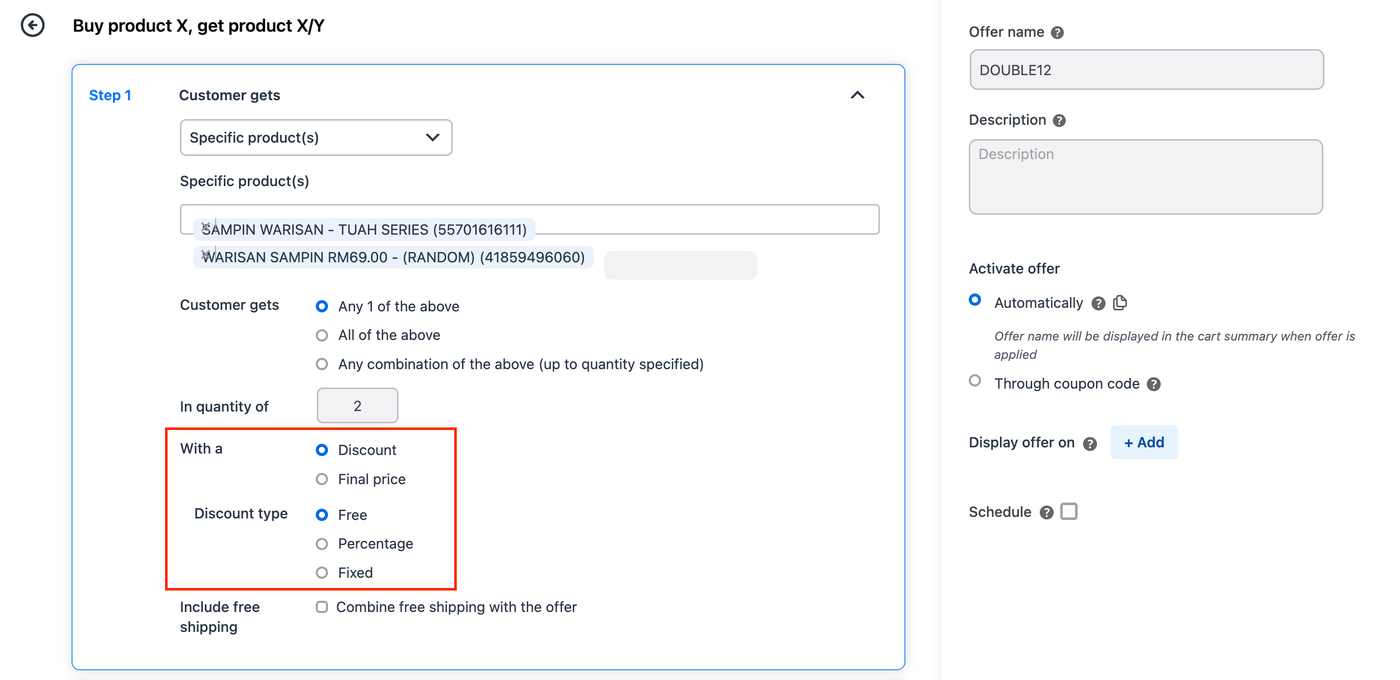
Step 1: Set up what the customer gets
1. Select offer type from the dropdown.
Specific product(s): Search by choosing one or more products to add to the customer’s cart on trigger.
Same product: Add the same product that triggered the offer to the cart.
Product from a selected category: The customer can add any product from the selected category to the cart.
Any product from the store: Random product(s) from the store is added to the cart.
2. Under In quantity of, specify the number of each chosen product customers receive.
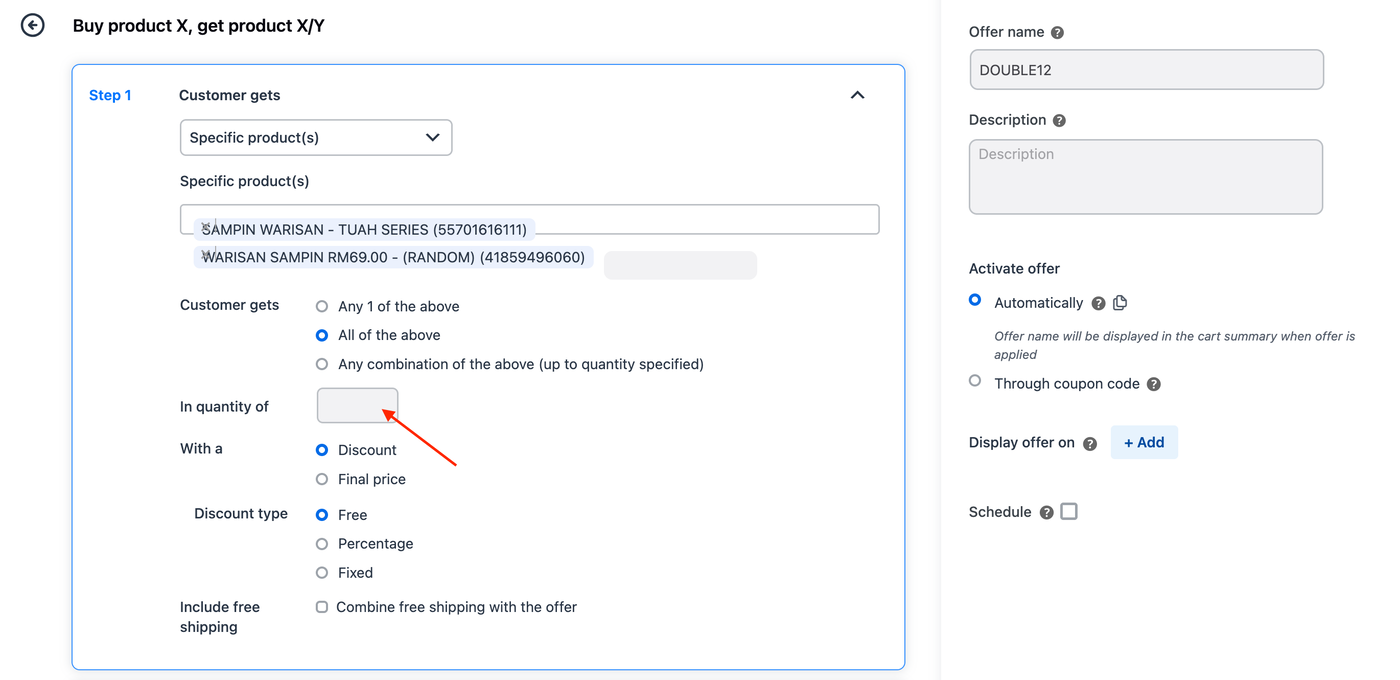
3. Define whether the reward product is free, discounted, or set at a specific price.
Discount – Provide the product for free or at a percentage or fixed discount.
Final price – If the original price is greater than the final price, the selected product is offered at a specified final price.
Step 2: Set up a trigger (Condition for offer activation)
1. Click the ⌄ button.
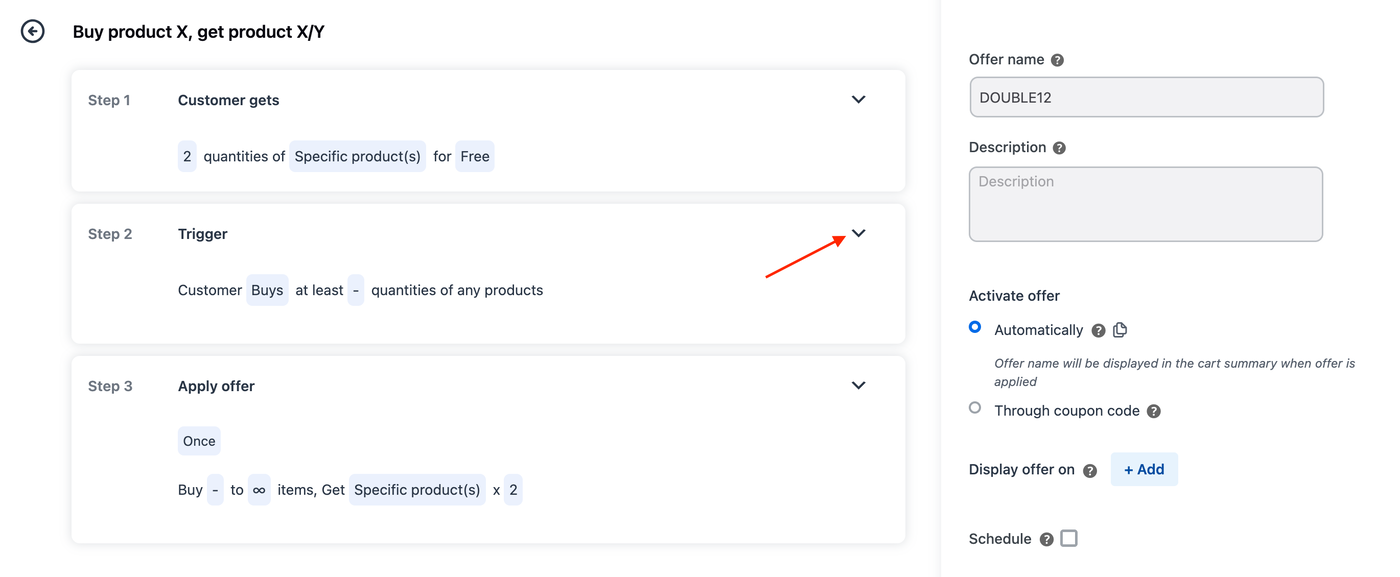
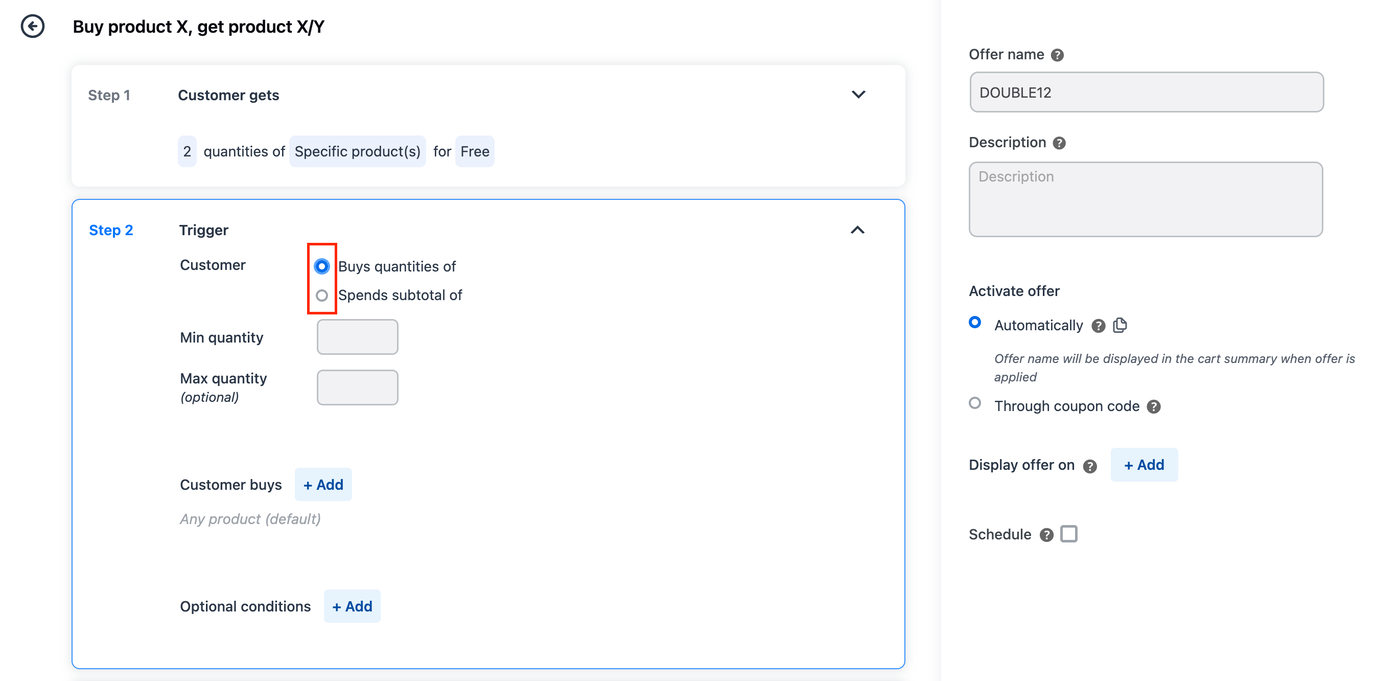
2. Choose a trigger type from the selection.
Buy quantities of – Choose specific product quantities that need to be in the cart for the offer to apply.
Spend subtotal of – Define a minimum and maximum amount range for the cart subtotal that activates the offer. For example, a subtotal between RM50 and RM100.
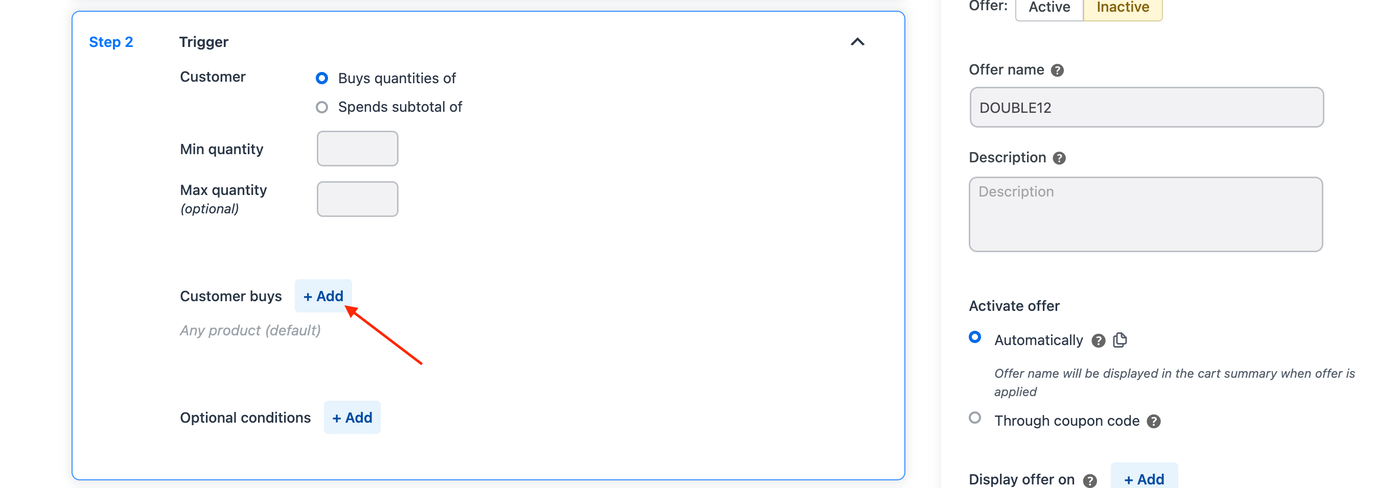
3. (Optional) Click + Add under the Customer buys section to set a product or category restriction. The available options are:
Customers must buy specific products.
Customers can buy any products except selected ones.
The cart must contain products from a specific category.
The cart can include products from any category except selected ones.
4. (Optional) Click + Add under the Optional conditions section to enable extra conditions that can be applied to the trigger. The available options are:
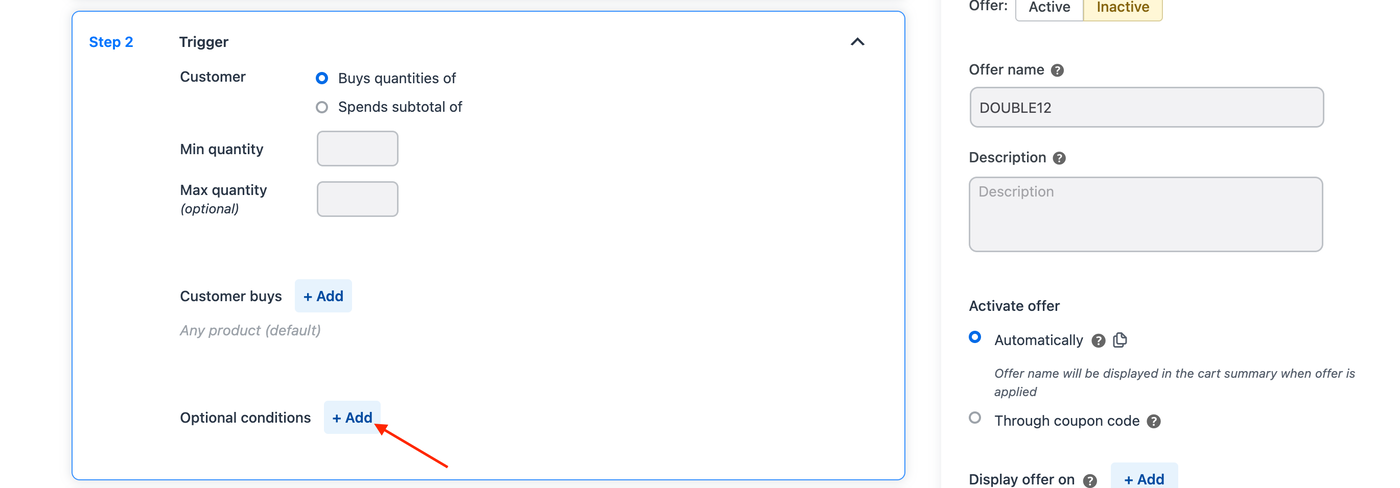
Cart conditions:
Quantity of each product: Each product in the cart should meet your specified quantity range.
Subtotal: The subtotal of the entire cart / the products selected under customer buys must meet the specified price range.
On-sale items: Choose to limit the offer to either sale items or non-sale items.
User Restrictions:
User role: Restrict offer only for selected user roles.
Allowed emails: Restrict offer based on email address. Offer won’t be auto-applied for guest users when email restriction is enabled.
Usage limits:
Usage limit per user: Limit how often each customer can redeem the offer.
Usage limit per offer: Set the maximum number of times the offer can be redeemed. (Across all users)
Combining offers: Enable to restrict combining this offer with other discounts.
Checkout:
Payment method: Restrict the offer to users using selected payment methods.
Shipping method: Restrict the offer for users using selected shipping methods.
Location: Restrict the offer state or country of the user based on billing or shipping address.
Purchase history:
First time buyers: Offer only applicable for first purchase on the store.
Recurring Customer: This feature allows you to offer discounts or special deals to customers who have placed a specific number of orders. You can further refine the eligibility criteria by setting additional conditions, such as:
Order Subtotal: Specify a minimum subtotal requirement for the selected orders.
Date Range: Define a time period during which the selected orders must have been placed.
Order Status: Apply the offer only to customers whose selected orders meet a specific order status (e.g., completed, fulfilled, etc.).
Product Inclusion: Restrict the offer to customers whose selected orders include a specific product.
Step 3: Set Offer Frequency
1. Click the ⌄ button.
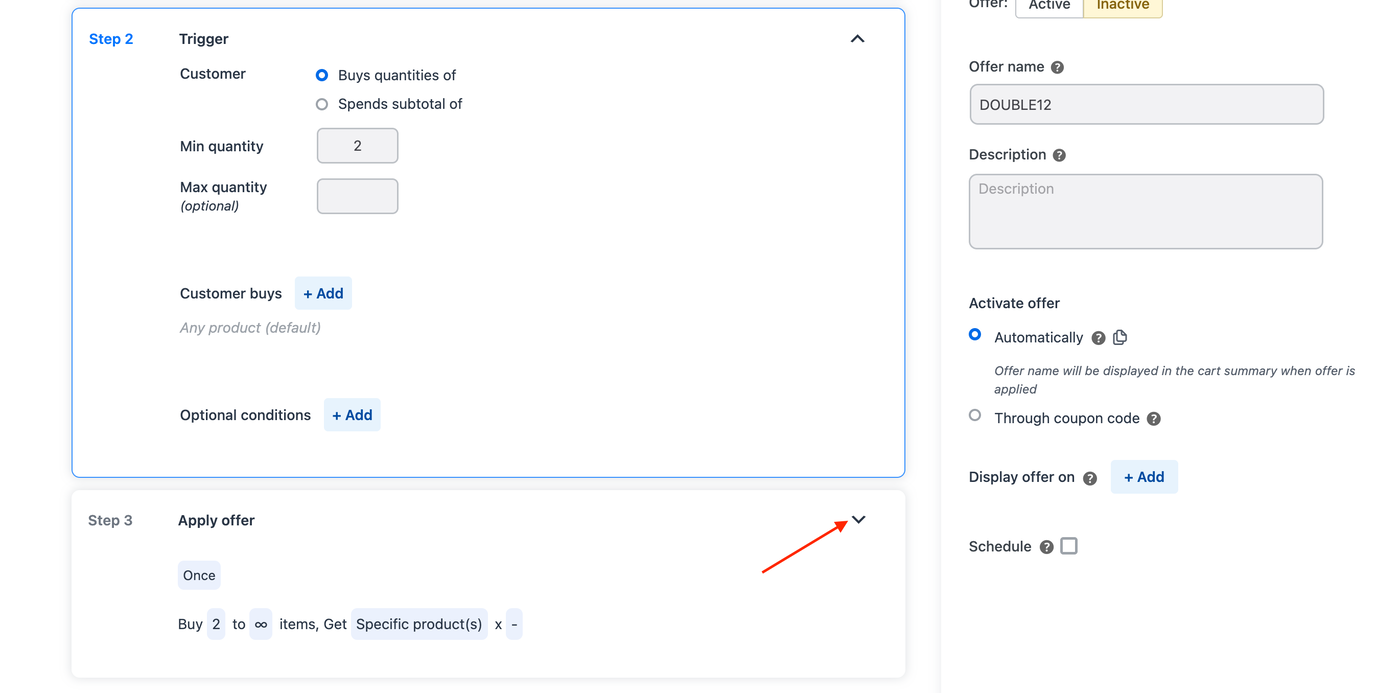
2. Under Apply Offer section, choose how often the offer applies when the cart meets the trigger condition:
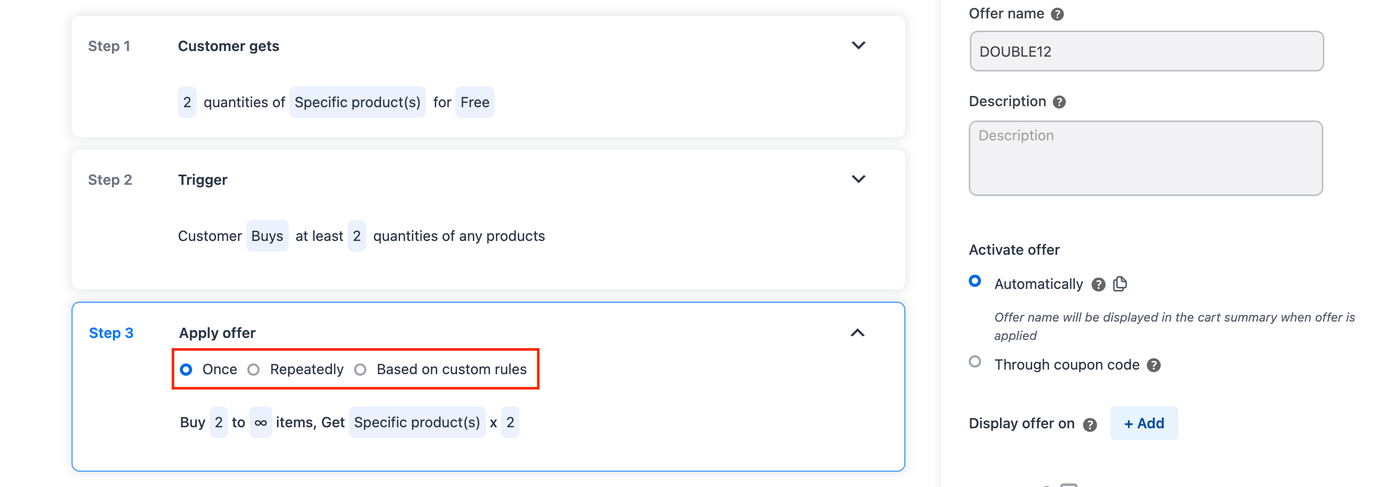
Once: The offer applies a single time based on the defined conditions.
Example: For “Buy 2, Get 1 Free,” the offer applies only once.
Repeatedly: The offer repeats each time the conditions are met. You can set a limit for repeating the offer.
Example: “Buy 2, Get 1 Free” can scale to “Buy 4, Get 2 Free” or “Buy 6, Get 3 Free.”
Custom: You can customize the offer frequency based on spend or quantity thresholds. Define intervals that specify when the trigger activates again, allowing for completely personalized offers.
Based on Spend:
Spend RM10–RM100: Get 1 free product.
Spend over RM100: Get 3 free products.
Spend over RM300: Get 4 free products.
Based on Quantity:
Buy 4–10 items: Get 4 free products.
Buy more than 10 items: Get 6 free products.
Buy over 51 items: Get 10 free products.
Step 4: Publish the offer
Once you’re satisfied with the offer settings, click Save & Activate.